A Keyword Manager that is. Today’s interesting find has occupied my time for the last two days*. I wrote before about Keyword Assistant, the tool that helps you tag your photos in iPhoto quickly and easily. Two days ago, I was perfectly happy with my 12,640 photos tagged with the people in them, places they were taken, etc.
Now, with Keyword Manager, you can tag your photos not only quickly and easily, but logically too. Keyword Manager allows you to create not only keywords, but also subkeywords, and labels them as such. Let me demonstrate with a simple example.

Lets say I have the photo you see on the right. With Keyword Assistant, I would merely tag this photo with the tags: Me, Joey, and Newport Beach. Seems simple enough. However, with Keyword Manager, I have assigned the keyword “Newport Beach” under the categories of “Orange County” which is under “Southern California” which is under “California” which is under “USA.” The other two tags for this photo have similar catagories for them which you can see below.
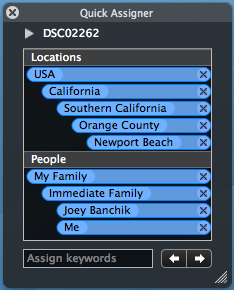
Why would anyone in their right mind do any of this, you ask? With this leveled (hierarchical) structure, I can search my entire photo library for all of the pictures that happen to be taken in the USA, in California, in Southern California, in Orange County, or in Newport Beach. Its pretty amazing. You can see the whole set up below.
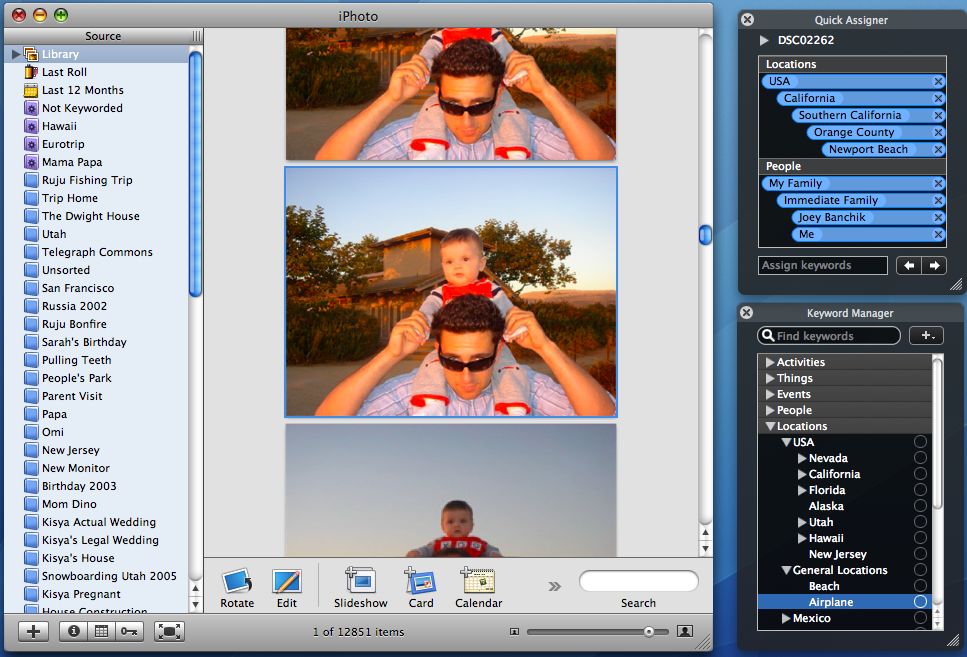
Keyword Manager lets you tag your photos VERY VERY quickly, and with an incredibly nice user interface (I’m a big fan of the transparent black bezel). The program costs $19, but if you use the Promotional Code VT-542U845 (US) and VT-542E845 (EU), you can get it for $12. Its highly worth the money! Find more information about it Keyword Manager here.
Update: The benefits of keyword hierarchy in more detail are in the comments.


*I spent two days reorganizing my 300 keywords, not tagging my photos. The tagging is much much quicker.
(sound of ticking clock) …and the deal is even better through MacZot – where it’s $9.50 – but only until the end of the day on November 22. Which is today. (In 2006, for all you future-Googlers!)
And, no, I don’t have anything to do with MacZot, other than I’ve spent some money with them recently on good independent software like this.
It isn’t clear to me why the hierarchy is useful..
If you’re trying to find a picture you remember taking at Newport Beach, why would you ever search for Orange County or California?
I would worry that too much effort would go into developing and maintaining keyword hierarchy, and that putting data on pictures would be correspondingly more effort.
First of all, thank you for your comments and questions. I figured that I might not have explained why hierarchy is extremely useful. Sorry for the length of the explanation below, but tried to explain the benefits in detail that I didn’t want to complicate the blog post with. With that said, let me clarify:
In response to the importance/benefits of keyword hierarchy:Â
Although I am unsure of the exact number, I have around 300 photo keywords currently in iPhoto. Without Keyword Manager, the most organization that these keywords would have is alphabetical (provided by Keyword Assistant). Its extremely difficult to manage this amount of keywords efficiently, especially when I have to scroll through them to find the one I want.
Therefore, since I probably had both Orange County and Newport Beach as individual keywords prior to Keyword Manager, it only makes sense that they should be grouped together, since one is a subcategory of another.
David, Keyword hierarchy isn’t useful in the case you describe. Its useful in a much more general case: lets say I want to find all of my pictures from Orange County.
With my keyword hierarchy already in place, each time that I apply the “Newport Beach” keyword, Keyword Manager automatically applies the keywords above Newport Beach: Orange County, Southern California, California, USA. Therefore, I can easily find all of my photos from Orange County even though I didn’t explicitly tag them with the “Orange County” keyword (Keyword Manager tagged my Newport Beach photos with Orange County automatically).
Thus tagging a photo with one keyword, automatically tags it with all of the other relevant keywords, all in one step. This is quite an improvement in terms of both time and effort over Keyword Assistant, or even just plain iPhoto by itself.
In response to putting in too much effort to use Keyword Hierarchy:
I agree with you. Since I already had 300 keywords in iPhoto prior to my Keyword Manager installation, it took a lot of time to setup my keyword hierarchy. However, I believe that the vast majority of people do not have their photos keyworded, but want to do this.
Starting the keywording process with Keyword Manager is significantly simpler and keyword hierarchy is quite simple to maintain and develop. In fact, though it is not documented in the Keyword Manager documentation, you can tag photos with new keywords with hierarchy in one simple step. If we were to continue my example from above, lets say I didn’t have any tags whatsoever in iPhoto, and I wanted to tag my photo from the post.
All I would have to do is go to the Quick Assigner and type “Locations|USA|California|Southern California|Orange County|Newport Beach” and press return.
With one step, I have created not only 6 different tags, but also created them with the proper hierarchy, and the next photo in the roll will only need to be tagged with Newport Beach in order to have the same applicable tags. Therefore, both development of keyword hierarchy and like you said “putting data on pictures” is one simple step.
Wow, I really hope this explanation is helpful but please do let me know if it isn’t. I truly believe that this product can be beneficial to most everyone, and don’t at all mind explaining why.
[...] Manager, my beloved iPhoto companion, is not yet compatible with iPhoto ‘09 as of this writing. The guys behind Keyword Manager [...]