Take a Stand

Thursday, November 23rd, 2006
standpoint.png

I was going to write one of those cheesy here’s what I’m thankful for this Thanksgiving, but geekify it a bit and write about what techy things I’m thankful for. But I’m not going to.

Instead, I think I’ll be thankful for free speech, with a little web 2.0 goodness mixed in. I’m talking about Standpoint, a website that allows you express your beliefs in a number of different ways.

You can state whether or not you agree with a variety of beliefs that other have submitted, or you could also submit your own custom beliefs, and people can comment, agree, disagree with what you said.

Its a pretty interesting concept, with the beliefs ranging from “Morality is not strictly religious- many atheists have very exacting moralities” to “Firefox is better than Internet Explorer” to “Ninja pirates are superior to everything.”

I think this site is perfect for days like today, when you’ve got nothing to do, and want to learn something / argue with someone / be heard / etc. Either way, check out the Standpoint, you might just like it. Happy Thanksgiving.


Everyone Needs a Manager

Wednesday, November 22nd, 2006
keywordmanager.png

A Keyword Manager that is. Today’s interesting find has occupied my time for the last two days*. I wrote before about Keyword Assistant, the tool that helps you tag your photos in iPhoto quickly and easily. Two days ago, I was perfectly happy with my 12,640 photos tagged with the people in them, places they were taken, etc.

Now, with Keyword Manager, you can tag your photos not only quickly and easily, but logically too. Keyword Manager allows you to create not only keywords, but also subkeywords, and labels them as such. Let me demonstrate with a simple example.

mejoey.JPG

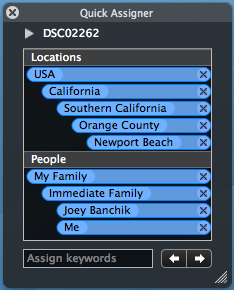
Lets say I have the photo you see on the right. With Keyword Assistant, I would merely tag this photo with the tags: Me, Joey, and Newport Beach. Seems simple enough. However, with Keyword Manager, I have assigned the keyword “Newport Beach” under the categories of “Orange County” which is under “Southern California” which is under “California” which is under “USA.” The other two tags for this photo have similar catagories for them which you can see below.

quickassigner.png

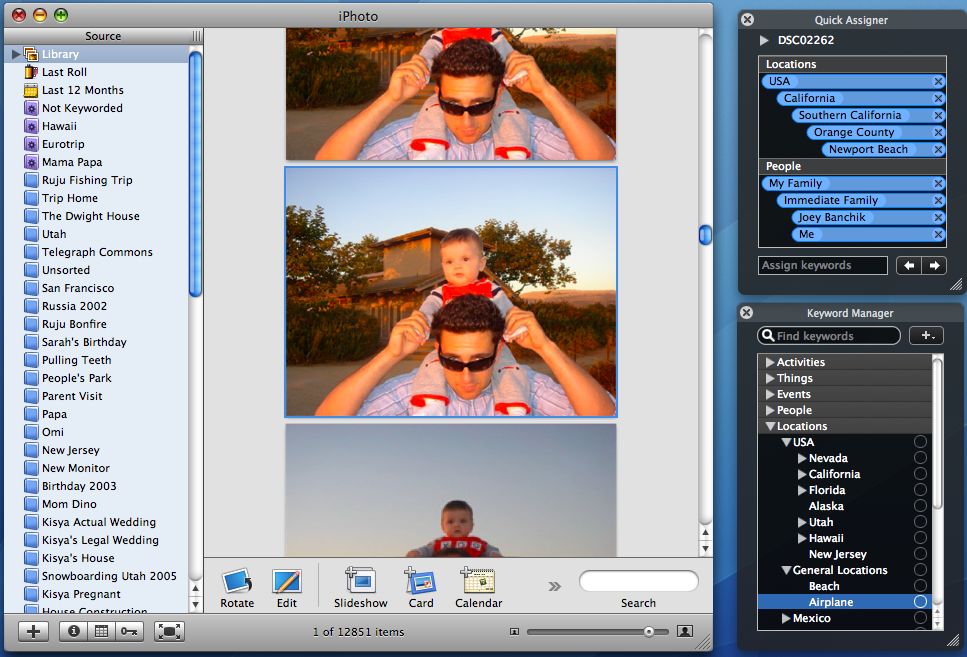
Why would anyone in their right mind do any of this, you ask? With this leveled (hierarchical) structure, I can search my entire photo library for all of the pictures that happen to be taken in the USA, in California, in Southern California, in Orange County, or in Newport Beach. Its pretty amazing. You can see the whole set up below.

kmwindows.png

Keyword Manager lets you tag your photos VERY VERY quickly, and with an incredibly nice user interface (I’m a big fan of the transparent black bezel). The program costs $19, but if you use the Promotional Code VT-542U845 (US) and VT-542E845 (EU), you can get it for $12. Its highly worth the money! Find more information about it Keyword Manager here.

Update: The benefits of keyword hierarchy in more detail are in the comments.


Maps For More Than Directions

Wednesday, November 15th, 2006
gmaps.png

If you’re anything like me, you only use map sites to get directions to take you from one place to another. Don’t get me wrong, they are amazing for that, but there’s SO much more.

My absolute favorite mapping site is Google Maps however, purely because its just so intuitive (nevermind good-looking). If I want to see a bit to the right of the current view on the map window, I just drag the map within the window. No page reloading, no nothing. It’ll even give you traffic on your cell phone! Its brilliant.

However, Google Maps are even more brilliant than that. You see Google allows application developers to use their maps for other purposes. You can find out where the cheapest gas is near you. You can find out where there are housing listings on Craigslist. You can create a map of your Facebook friends. You can even complain about that one red light that never turns green!

There are tons of different applications for Google Maps, so check them out!


OSX Tips and Tricks

Friday, November 10th, 2006
bulb

I was a Windows guy for the majority of my life, right up until I received my first Mac Mini two years ago. Throughout the whole time that I was a Windows user, the only time I would find out little tricks to help me do my day to day tasks was when a new version of Windows came out, and they had added new features.

OSX on the other hand, seems like more of an onion to me, the deeper you dig, the more layers you find. Such is the case with these helpful hints for OSX. The people over at Apple Matters did a great job compiling this list, and the people in the comments also have helpful things to add. Note: if you have a single button mouse/trackpad, where it says “right click,” substitute with “control-click.”
Some of my favorites are below:

  • Press the Tab key in Exposé to cycle through open applications.
  • Press the ` key in Exposé to cycle backwards as per the previous tip. ( ‘ is the key Tab and left of the 1 key).
  • Press Command-Q to close applications when command-tabbing. This is possibly the fastest way you’ll find to close several applications in quick succession.
  • Macs with remote controls can be put to sleep by holding down the play button on the remote.
  • To select a block of text, click the start position, then Shift-click the end position - this one is awesome.
  • We all know Command-shift-4 to capture a selection of the screen, but don’t forget pressing the Spacebar will toggle between selection mode and select whole window mode.
  • Hold the Option key will clicking the Zoom button (green button, rightmost of three in the top left corner of windows) switches the zoom state of all windows in the selected application.
  • Option-click the minimize button minimizes all windows in the application - and makes for a really cool animation (hold the shift key too if you want to slow it down to see it more easily).
  • CTRL + Scroll wheel on the mouse zooms in on the screen, then move the mouse around to move the screen around.
  • Option + Delete will delete a track in iTunes regardless of where you are, library, playlist, or otherwise (this one is really helpful)

You can find the entire collection of tips and tricks here. There are a couple more cool tricks I found over at Silver Mac including one about a third Minimize effect for the dock called Suck. Check it out here.


My GreaseMonkey is My (Web) Co-Pilot

Monday, November 6th, 2006
GreaseMonkey

I browse a lot of websites. I’ll admit it. Sometimes I find that there is one simple way to improve a website - one minimal change - that could make it so much better. A button here, a link there. Luckily, this is where my love for Firefox Extensions comes in - the GreaseMonkey extension allows you to change pretty much anything about a website’s look, feel, or function through user scripts.

Its best illustrated with an example. I am an avid Gmail user, and find the email service very functional and simple. However, I don’t understand why they didn’t include a Mark As Read button for the inbox. It’s just asking to be there, but its not. Here’s where GreaseMonkey comes in - once GreaseMonkey is installed, I simply look for a Gmail Mark As Read Button script at Userscripts.com, a site devoted to collecting GreaseMonkey scripts.

Here’s a list of GreaseMonkey scripts that I have installed currently:

  • Google
    • Gmail Signature Float - Floats your signature above replied/forwarded message instead of below (default)
  • Facebook
    • Facebook Autologin v2 - no more having to press login despite having your login information saved
    • inYOfacebook - allows you to see people’s enlarged profile picture in search queries (very cool)
    • Facebook EZ Poke - no more poke confirmation page - it all happens with the click of the EZ Poke button
  • Last.fm
    • Chart Changes - Places a +/- value next to songs, artists, or albums tracking week to week changes
    • Artist Fan Rank - lets you know when people are in the top fan ranks for artists, songs, or albums
  • General

The vast majority of those scripts came from Userscripts.com, which has a large collection GreaseMonkey scripts you can search through. Its a great resource, and the key to adding website functionality that you have always wanted. There is also a variety of sites that have discussed the best GreaseMonkey scripts out there.

My suggestion is to install GreaseMonkey, check out the scripts that I use and see if they are beneficial to you, and then search for the sites you visit on Userscripts.com. GreaseMonkey can be an amazing asset, and its quite easy to use to boot! Enjoy!


Keep Your Contacts, Easily

Friday, November 3rd, 2006
Plaxo

Between high school, college, graduate school, work, and, well life in general - you’re bound to meet a lot of people. Business cards get lost, emails get changed, phone numbers come and go, and screen names get forgotten. Not anymore.

Plaxo is a company started in 2001, devoted to keeping people’s contact information current, and in the hands of people you think should have it. In addition to Address Book integration (on OSX), and Outlook integration (on Outlook), it has a really nice website that is quite easy to use. Other features include mobile phone integration and Gmail contact import. Plaxo is great for the business world, as well as just keeping in contact with your friends. It allows you to send out your updated contact information to all of your contacts, as well as request them to confirm the contact information you have for them.

Plaxo

You might say well I keep my contact information updated through sites like Facebook, etc. Facebook used to contain a feature that allowed you to download your friend’s contact information into the vCard format. Now that’s all gone. Plaxo is now the best way to keep your contact information up to date.

The first thing I thought of when I first heard of this site was privacy issues - are they going to share my information with anyone? Rest assured, Plaxo upholds a strict privacy policy and is completely secure to hold your contact information. Currently it has 15 Million+ members, and its growing significantly every day.

I highly recommend you guys check Plaxo out, and add me as a contact (eugene AT gordin DOT net).