Returned with Lessons Learned

September 3rd, 2007

norway.png

I know what you’re thinking, you want to give me extra points for having a title that is relevant and that rhymes. I know, I know, its a gift.

Well I’m back from Europe now, and the trip, in all senses of the word was eye opening. Especially in the technological sense, which is the reason behind this post.

One week into the three week trip, my Mac Book Pro died. Now when I say died, I mean that it would not get past the gray apple loading screen, and would not boot from a restore disk.So, for the rest of my trip, I had a beautiful aluminum brick to lug around Europe. As it turned out, the hard drive partition got corrupted somehow between Germany and the Czech Republic, and a simple wipe of the hard drive and repartitioning solved the problem. In the end, the only thing I lost was 12 photographs and 2 videos from the trip, and the rest I was able to either recover from the hard drive or alternative sources. I was lucky. I brushed over it just now, but let me say it again: I had to completely erase my hard drive and repartition it. All of the data on it – gone. Let me now explain what I did right, what I did wrong, and what I learned as a result of the whole traumatic experience.

Let me first explain what I did right:

  • As an avid proponent of backing up everything, I made sure to back up my entire hard drive to my MyBook external drive before leaving. That way, all of my data that was on my computer at the time of my departure would not be lost. In fact, it was backed up using SuperDuper, which means that I had a fully bootable backup of my Macbook’s hard drive.
  • Since we had internet access on the trip pretty much every night, I uploaded a number of photos from each location to my Picasa Web Album, and used their photo mapping feature to give people a better idea of where the photos were taken (this is a great little feature).

That was about it for correct action on my part. Here’s what I did wrong:

  • On the trip we used my Macbook Pro for GPS guidance which, while the Macbook Pro worked, was sweet. The way I did it was using Microsoft’s GPS Locator and Microsoft’s Autoroute Europe 2007 running in Parallels Desktop for Mac. While on the surface this may seem like a good way of getting GPS driving navigation, think about your hard drive spinning while bumping around the broken Czech Republic roads, and you have yourself a recipe for hard drive failure (which I subsequently experienced).
  • After being very careful to back everything up before leaving, I proceeded to import my one of a kind trip photos onto my laptop every night, not realizing that if my hard drive died, it would have taken my photos with it, never to return.
  • In trying to keep up with all of the technology news while traveling, I installed a program that was beta. This too might not seem like a big deal, but see below.

I look back at that list and I just want to kick myself for it. I guess life took care of that however. Here’s what I would have done differently:

  • Running a laptop in a car is just a bad idea, laptop or anything else. I should have just invested some money in a TomTom or the like, and gotten my GPS guidance that way.


  • I should have uploaded all of my photos, not just some, to my Picasa Web Album or the like. I could have even split it up, keeping the ones for everyone to see in the album I was using, and uploading the rest to a private album just for safe keeping. With the gigabyte of storage (currently, and Upgradable), this is more than enough for a three week trip, especially since you can lower the quality slightly with Picasa’s iPhoto Uploader.


  • I should not have installed ANY software (including Apple software updates) while away from an accessible full backup of my system. This is just a bad idea, and can lead to diminished system stability at the very time you need it most.


  • I should have backed up my computer’s hard drive not only to my MyBook but also to an online storage provider. Although it takes quite a while for your machine to back up initially, a quick daily online backup can provide the comfort and security that my MyBook provides at home. Furthermore, an online backup (one that is secure), allows you to have full access to ALL of your files while traveling – with your computer or not. This is a GREAT feature I wish I had.

Well, these are all things I now know and have begun to practice. I am currently 15 gigabytes into a 130+ gigabyte backup of my entire system online. I am doing it through a company called Mozy, which offers very affordable backup with the ease and security I have become accustomed to on my Mac. I paid $55 for a year of unlimited backup, which is quite a deal, especially given everything that Mozy offers. Mozy has a free version of their software too, which offers 2 gigabytes of backup space without paying a dime. I highly recommend both Windows and Mac users check them out (the Mac client is currently in Beta, but has come a long long way). Also, don’t believe everything you read – although I read otherwise, Mozy’s technical support is VERY helpful and responsive.

Well, looking back at the post above, I guess you could sum up my advice with one word: redundancy. If you only have one of something (such as a photo), do everything you can to back it up. You never know what can happen, especially while traveling.


Rename Multiple Files

February 24th, 2007

Windows Explorer

In Windows, you can rename multiple files quickly (and much quicker than in OSX). In order to do this, follow these steps:

  • Highlight the files you want to rename. (Use Ctrl or Shift to highlight multiple files at once)
  • Right-Click the first file in the series, click Rename.
  • Only the file you’ve right clicked will be highlighted. That’s OK. Change the file name, the extension will be kept.
  • Hit the enter key to commit your change. Your files will be named “file (1).jpg”, “file (2).jpg”, etc..

This little trick comes courtesy of LifeHacker, and can be very convinient especially if you have a lot of files to work with. Try it out. And for all of you Mac users, you can do the same thing with Automator, though its a little more drawn out.

New Year, New Updates

January 10th, 2007

2007

Happy New Year! I wanted to start this new year off by looking back at a few posts that I wrote this year, and offering some updates. As I looked back through the early posts on this blog, I noticed that my approach gradually changed as I settled into a regular pattern and tone. I’m not sure how that last sentence related to anything that comes both before and after it, but it rings true nonetheless. Here goes:

Keyboard Shortcuts

Keyboard Shortcuts

The first update I want to make is to the keyboard shortcuts post. I came across the official lists of shortcuts for both OSX and for Windows, which can be quite helpful for speeding up everyday tasks. You can check them out here:

__________________________
Replacement Icons

Tape

The second update I wanted to make was to the Icons post. Although InterfaceLift is still a great resource for icons (both for OSX and Windows), there are some beautiful icons at PixelPress Icons.

My favorite by far is the cassette icon that I now use for iTunes. Its very well done, as you can see on the left. One of the things to note about the site is that there are multiple different icons for each picture shown on the site, so be sure and pay attention to the text under the icons to see how many are in that collection.
__________________________
Backup Hard Drives

MyBook

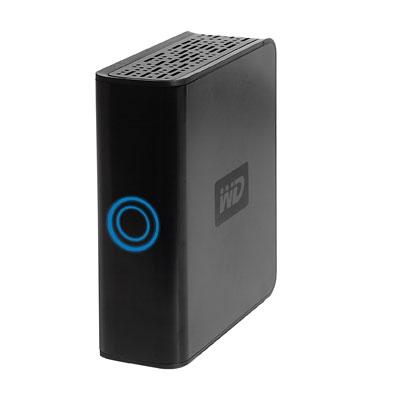
The third update I wanted to make was to the external hard-drive post. I love my MyBook drive. I’ve been using it for a while now, and its everything I need in an external drive – its small (in form-factor), big (in hard-drive size), quiet, reliable, cost-effective ($220 for 500GB), and quite stylish.

With all that, I find that I take it with me quite a lot when I travel, since it houses not only a complete bootable backup of my whole MacBook Pro, but also all of my videos and programs. Therefore, I needed some way to transport the drive that would keep it safe. The best solution I have found so far was my Tom Binh Mac Mini Bag. Since I do not travel with my Mac Mini anymore, I put my MyBook inside the case and was surprised to find that not only did the drive fit snugly and perfectly in the case, but the power brick also fits in the case right next to the drive. Its a very secure fit, and the rest of the cables fit in the outside pouch. If you are looking for a travel case for your MyBook, the Tom Binh Mac Mini case is the ideal product.

__________________________
Firefox 2.0.1 Optimized

firefox.jpg

A while back I wrote about Optimized versions of Firefox. Just as Mozilla released an update to their Firefox browser, Beatnik Pad has released a new version of Firefox 2.0.1 Optimized for Intel and PPC processors.

The optimized versions tend to speed up Firefox on certain machines. If you find that the versions do the exact opposite, you can just re-download Firefox from Mozilla’s site.

__________________________
That is all for now. Enjoy!

The Future Is Now, and It’s Amazing

December 31st, 2006

Parallels Desktop

Well, the future at least in terms of computers. More specifically, the future in terms of how Apple can live to compete, without compromising quality. Okay, enough generalities.

I’m talking about Parallels Desktop for Mac. I’ve written about it before, but a lot has changed since I wrote about it last. The Parallels development team have been working overtime on creating a product that has truly surpassed people’s expectations for running Windows software on their (Intel) Macs. As I write today, the last day of 2006, the Mac world has come a very long way in just one year. With the replacement of the old PowerPC processors to new and speedy Intel ones, Apple opened the floodgates for lots of different ways to run Windows on a Mac. At the time of this writing, none of these ways comes close to Parallels Desktop for Mac. Let me explain why.

When it first came out, Parallels Desktop for Mac offered Mac users the ability to run Microsoft Windows at full speed inside of OSX, no reboot required. For those of us who are forced to use Windows because of the lack of OSX versions of the program we need (AutoCAD, for me), this was amazing. Since Parallels Desktop for Mac came out this April, new and improved versions have been release almost twice per month, each new version adding logical and much needed improvements over the last version. However, on December 1st, the Parallels team released a beta version of Desktop for Mac that added several showstopping new features:

  • Drag & Drop from OSX to Windows: Seamlessly drag and drop files and folders from Windows to Mac OS X and vice versa
  • Auto-Adjusting Screen Resolution: Auto-adjusts the screen resolution to the actual Main Window size
  • Boot Camp Partition Booting: Boot your 32-bit Windows XP residing on Boot Camp partition directly in Parallels Desktop for Mac
  • Parallels Transporter: Migrate your Windows PC, VMware or Virtual PC VMs to Parallels virtual machines

All of these features are extremely useful and helpful, but none compare to the additional feature that this beta version introduced: Coherence. Coherence allows you to run Windows invisibly on your Mac, no windows desktop in sight, letting you work from within OSX but with your Windows programs. Simply put, Coherence mode “shows Windows applications as if they were Mac ones. Try it and enjoy best of both worlds truly at the same time. No more switching between Windows to Mac OS.”

Now I run AutoCAD on top of OSX, and never have to see the Windows interface. In fact, I can even launch Windows program from my dock. On the left is a small video I made showing how Coherence works. Basically, Windows starts up, and then disappears. I launch Windows Explorer, Internet Explorer 7, Microsoft Word 2007, all as if they are running right in OSX. You can even see how iTunes interacts with the Windows programs. Its pretty amazing, check it to the left (sorry about the quality, it was my first movie:) )

One of the best parts of Coherence mode is the fact that I can run Microsoft Office 2007 in OSX now. Why would I want to do that if I have Office 2004 for Mac already installed? Office 2004 for Mac runs incredibly slowly on Intel Macs since its not a Universal Binary, and therefore has to be run in Rosetta. On the other hand, since Windows runs at full speed in Parallels, Office 2007 is as quick and speedy as it ever has been. As a result, I almost exclusively now run Microsoft Office products in Parallels rather than OSX. Its quick, easy, and the perfect solution until Microsoft releases a new version of Office 2007 for Mac.

Check out Parallels, check out Coherence, and if you have any questions about why either one is EXTREMELY useful, let me know 🙂

Behind the Curtain

December 30th, 2006

ProcessScanner
Processes

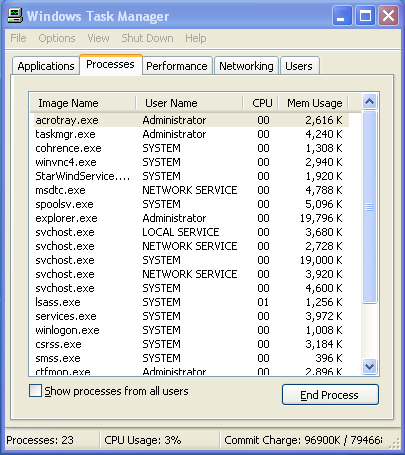
Have you ever pressed Control+Alt+Del on your PC, clicked on the Process tab, and wondered what all of those processes running in the background are? Me too. I used to first see if I could recognize the name, then maybe try to google the name, and then, well, just shut the process down and see what happens. Well, those days are over.

In a world of (pc) spyware, viruses, trojans, etc, it is important to both know, and keep track of what our computers are doing. Therefore, in order to help my favorite trifecta of Windows Defender, Spybot Search and Destroy, and AVG Antivirus, I present to you Process Scanner.

Process Scanner is an offshoot of a site called Process Library, which is exactly what it sounds like: a library of processes that run in Windows. Process Scanner is a small program that examines the processes runnning on your computer, and then sends the results to a website (anonymously for those of you in tin hats), which creates a report of what exactly each one of them is, as well as the threat level each process brings to you and your machine.

Its simple, effective, and very helpful, so check Process Scanner out.

Claim Your Space

December 11th, 2006

msofficelivebasics.png

Everyone should have a domain name. I’m a huge advocate of having domain names for families (such as gordin.net), as well as for individuals (such as eugenegordin.com, which you’re currently enjoying reading). Therefore, for all of you Windows users, Microsoft is offering free domain names for you, providing at no cost:

  • Free domain name and web hosting
  • Web site design tools
  • 500MB of web storage
  • 25 email accounts
  • Web site reports
  • Search engine advertising tool

This is quite a great deal (things are just better when they are free), so I highly recommend the windows (and Parallels) users check it out here. Also, according to the good people over at DownloadSquad, if you decide to cancel your hosting with Microsoft, you still get to keep the domain.

For all of you non-Windows users, NameCheap is where I get the majority of my domain names for my webhosting company ($9 per year). That said, if you are looking for non-Microsoft hosting, I know a guy who can help you out :). Enjoy.

A Closer Look at Windows

December 1st, 2006

windows-xp-logo-glass-small.jpg

To go along with the new sidebar section I added today that lets you see all of the posts associated with your operating system (if that’s what you are looking for), I thought I would have a post dedicated to the Windows users. With that said, here goes:

Have you ever wanted to know how to turn off those pesky start-up programs that seem to just pop up when you start your computer. If so, there are two places that you can find (and disable them). The first place is in the start menu: Start –> All Programs –> Startup. While this is the logical place for your startup items, it by far isn’t where the majority of them are.

You can find more startup items by going to Start –> Run and typing “msconfig” without the quotes. This will bring up a window with a few tabs. If you click the Startup tabs, you will see the programs that are set to run when your computer starts. Be extremely careful when unchecking items in this tab – you could mess up your computer. Therefore, a good rule of thumb is to not uncheck any program that you do not recognize.

That little trick has helped me get rid of spyware and program annoyances in the past, so I hope it helps you too. You can find more windows commands here.

PS: My goal is to post both Vista and Office 2007 reviews sometime this year for you windows users, so be on the look out for those!

The Initial Transformation: Part III

July 13th, 2006

I’m back with the third and final installment of my series on essential software for all new computers. While the first and second parts of this series covered the basic necessities, this third part will cover software that is just good to have around (for both Macs and PCs). Lets start with software for OSX, and finish with a couple PCs applications.

For OSX:

Internet Telephone skype_logo.png Skype: Skype allows you to speak to anyone in the world with a computer and an internet connection for free. You can also currently make free calls to any telephone number in the US, and make international calls for fixed minute rates. Video chat is also available.
Application Launcher quicksilver.jpg Quicksilver: An application launcher, Quicksilver can speed up drastically everyday tasks by allowing you to do a variety of things with simple keystrokes.
Space Saver quicksilver.jpg Monolingual: Monolingual is a must have application for all users that are, well, monolingual. Basically this program allows you to remove all of the unneeded language files except the one you need. It can save you up to 3GB of space!
Notifications growl.png Growl: Growl is a notification system for OSX that can alert you about anything from instant messages, to finished FTP tasks, to a new song playing in iTunes, all with a beautiful customizable interface.

For PCs:

Archiver
WinRar: WinRar is a replacement for windows compressed folder handling. It allows you to both create and extract all kinds of compressed filetypes.
iTunes quicksilver.jpg iTunes: There’s really no good reason to recommend iTunes except that its probably the best music player out there for windows. Also, I really like it because it gives Windows users a look into the simplicity that is Mac OSX.

Well that pretty much wraps up this series. I hope that it helped and if you know of any software that I missed, please let me know in the comments section and I’ll add it.

The Initial Transformation: Part II

July 12th, 2006

Welcome back for the 2nd installment of my essential software series. In this post, I will cover the must-have Windows programs that I would install the minute I had a new computer before me. First off, let me just say this part isn’t going to be nearly as pretty as the first part in the series, simply because it is only now that Microsoft is adopting larger icons for its programs. That said, lets begin:

Antivirus
AVG: Grisoft AVG is one of the most powerful antivirus solutions for Windows offering a complete selection of tools and utilities to secure your Windows PC. Alternatives: McAfee, Norton Antivirus
CD/DVD Burning Nero: Nero is a fully functional, CD/DVD authoring program that allows burning of data, video, audio, and images. It also includes all kinds of disc customizations, menus, etc. Alternatives: Easy Media Creator, Ashampoo Burning Studio, DiscJuggler
Instant Messaging Trillian: Trillian is an instant messenger client that allows connections to AIM, MSN, Yahoo, ICQ, and other messaging services. See my post below for more information. Alternatives: Gaim, Miranda
Security Spybot Search & Destroy: A free utility that is extremely helpful in both removal and prevention of spyware and malware. Every Windows PC needs this. Alternatives: Help yourself -Get spybot.


Windows Defender: Microsoft’s solution to their own security problems. Its actually quite a powerful and useful program. Avoid problems – Get Windows Defender. Alternatives: Adaware
Web Browser Mozilla Firefox: A skinable, secure, customizable web browser with tons of features, plug-ins, and anything else you would need. Be sure and install the adblock and tabbrowser preferences plugin I mentioned in my post below. Alternatives: Opera, Internet Explorer 7
FTP Browser SmartFTP: The simplest, most straight forward FTP browser out there for Windows. A must-have for anyone with webspace. Alternatives: CuteFTP, FileZilla
Media Playback K-Lite Codec Pack: K-Lite Codec Pack is a collection of codecs and related tools and will play back all of your movie formats using Media Player Classic (a very good alternative to later Windows Media Players). Alternatives: XP Codec Pack, Codec Pack All in 1

Up next is part III in this series, which will cover software for both OSX and Windows that a new computer (and you) probably can live without, but shouldn’t.

Keyboard Shortcuts for the Masses

July 5th, 2006

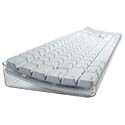
Keyboard Legend

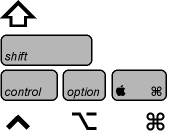
As most people know, both Windows and OSX have tons of keyboard shortcuts built into them, all for the sole purpose of speeding up remedial tasks. Instead of listing all of the keyboard shortcuts that are out there, which you can find here (Windows) and here (OSX), I thought I would list the ones that I use on a daily basis.Global Shortcuts (windows users should use ctrl key instead of apple)
apple+c – Copies highlighted item
apple+x – Cuts highlighted item
apple+v – Pastes copied/cut item

apple+a – Selects all items
apple+s – Saves document/webpage/etc
apple+p – print document/webpage/etc
apple+w – Close current page/document/etc
apple+n – Open new page/document/etc
apple+q – Quit current program

apple+b – Bold highlighted text
apple+i – Italicize highlighted text
apple+u – Underline highlighted text
apple (hold) +click multiple objects – highlights multiple objects (not necessarily in a row)
shift+click – Highlights multiple objects in a row

Personal Favorite:
apple+t – open new tab in Mozilla Firefox (I use this one hundreds of times per day)

Apple OSX Specific:
apple+shift+3 – Take screenshot of entire display
apple+shift+4 – Take screenshot of sizable window
apple+option+esc – Force Quit Unresponsive Application
apple+tab – Switch between open windows
apple+delete – Send item to trash
F12 – Bring up dashboard (10.4 Tiger & later)

Microsoft Windows Specific:
windows – Bring up start menu
windows+e – Open new explorer window
alt-tab – Switch between open windows.

Those are the keyboard shortcuts that I use regularly, and can reallys speed things up when you are working. I also use a program called SizzlingKeys for OSX, which allows me to program my own keyboard shortcuts for controlling iTunes. That way, no matter what program I am in, I can play/pause/move toSizzlingKeys next track in iTunes with simple key combinations. SizzlingKeys is free, but if you want to enable the Pro features such as searching your library and playlists with shortcut keys, it’ll cost you $4.95. On my Macbook Pro, I have sizzling keys programed for:

apple+F11 – Play/Pause
apple+F12 – Next Track

If you can remember any of these, it will really speed up some of the repetitive tasks we all often have to do. Hope that helps!

my writing

my website is a collection of my work and writing since 2004, so please don't be surprised if things seem a little outdated, particularly in the technology section. That said, the concepts behind most posts should be interesting given all that's happened since they were written so enjoy!