Send Files, the Simple Way

February 25th, 2007

MediaFire

I’ve always wondered what the best way to send files from one person to another is. There are a whole lot of  options out there – yousendit, rapidshare, sendspace – but none of them compare to MediaFire.

Literally, all you have to do is click Browse, find the file, and click Upload. The upload progress is displayed very well, and the result provides you with a link, the html code for the link, and the VB code. With file transfer services like this, speed and ease is key, and this is probably the easiest and fastest service out there. Its free to boot! The only limitation is that the file size has to be less than 100mb, but thats not too restrictive, and your files currently will not be removed at any point.

If you need to transfer large files, I highly suggest you use MediaFire.

Rename Multiple Files

February 24th, 2007

Windows Explorer

In Windows, you can rename multiple files quickly (and much quicker than in OSX). In order to do this, follow these steps:

  • Highlight the files you want to rename. (Use Ctrl or Shift to highlight multiple files at once)
  • Right-Click the first file in the series, click Rename.
  • Only the file you’ve right clicked will be highlighted. That’s OK. Change the file name, the extension will be kept.
  • Hit the enter key to commit your change. Your files will be named “file (1).jpg”, “file (2).jpg”, etc..

This little trick comes courtesy of LifeHacker, and can be very convinient especially if you have a lot of files to work with. Try it out. And for all of you Mac users, you can do the same thing with Automator, though its a little more drawn out.

iPhoto Camera Browsing

February 24th, 2007

iPhoto

iPhoto is great. Even with my 14,000 photos, and over 400 different keywords, its still speedy. However, great is the day when I find out something new about a program I already love. Although the day I found this was a while ago, my good friend Mike the other day asked me whether it was possible to browse the photographs on a digital camera in iPhoto prior to importing them, and I remembered this great tip.

If you want to browse your camera photographs, just plug in your camera into your Mac, (iPhoto should open automatically in import mode), and instead of clicking import, press the return key on your keyboard twice quickly. This will let you see all of your photographs on your camera, and on some (probably most) cameras, you can drag and drop into your iPhoto library.

This is a cool little trick courtesy of MacOSXHints. If you want to find out more, I highly suggest you visit their incredibly helpful site.

New Year, New Updates

January 10th, 2007

2007

Happy New Year! I wanted to start this new year off by looking back at a few posts that I wrote this year, and offering some updates. As I looked back through the early posts on this blog, I noticed that my approach gradually changed as I settled into a regular pattern and tone. I’m not sure how that last sentence related to anything that comes both before and after it, but it rings true nonetheless. Here goes:

Keyboard Shortcuts

Keyboard Shortcuts

The first update I want to make is to the keyboard shortcuts post. I came across the official lists of shortcuts for both OSX and for Windows, which can be quite helpful for speeding up everyday tasks. You can check them out here:

__________________________
Replacement Icons

Tape

The second update I wanted to make was to the Icons post. Although InterfaceLift is still a great resource for icons (both for OSX and Windows), there are some beautiful icons at PixelPress Icons.

My favorite by far is the cassette icon that I now use for iTunes. Its very well done, as you can see on the left. One of the things to note about the site is that there are multiple different icons for each picture shown on the site, so be sure and pay attention to the text under the icons to see how many are in that collection.
__________________________
Backup Hard Drives

MyBook

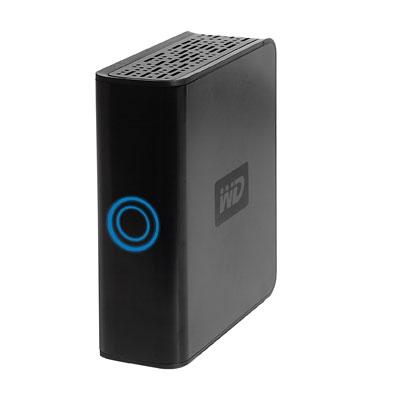
The third update I wanted to make was to the external hard-drive post. I love my MyBook drive. I’ve been using it for a while now, and its everything I need in an external drive – its small (in form-factor), big (in hard-drive size), quiet, reliable, cost-effective ($220 for 500GB), and quite stylish.

With all that, I find that I take it with me quite a lot when I travel, since it houses not only a complete bootable backup of my whole MacBook Pro, but also all of my videos and programs. Therefore, I needed some way to transport the drive that would keep it safe. The best solution I have found so far was my Tom Binh Mac Mini Bag. Since I do not travel with my Mac Mini anymore, I put my MyBook inside the case and was surprised to find that not only did the drive fit snugly and perfectly in the case, but the power brick also fits in the case right next to the drive. Its a very secure fit, and the rest of the cables fit in the outside pouch. If you are looking for a travel case for your MyBook, the Tom Binh Mac Mini case is the ideal product.

__________________________
Firefox 2.0.1 Optimized

firefox.jpg

A while back I wrote about Optimized versions of Firefox. Just as Mozilla released an update to their Firefox browser, Beatnik Pad has released a new version of Firefox 2.0.1 Optimized for Intel and PPC processors.

The optimized versions tend to speed up Firefox on certain machines. If you find that the versions do the exact opposite, you can just re-download Firefox from Mozilla’s site.

__________________________
That is all for now. Enjoy!

Apple Cares: Should I Buy AppleCare/.Mac or Not

December 29th, 2006

First of all, I would like to apologize about the lack of posts. Despite the fact that I am on winter break currently, I have been working with my father, so my time has been quite sparse. That said, below is a post that was originally supposed to be two different posts, but since the topics are so related, I combined them. Here goes!

applerepair.png

I’ve said (and typed) it before and I’ll say (and type) it again – I love Apple. There are lots of reasons why, but this week I found yet another one. Last Tuesday, in the late afternoon, I sent my MacBookPro to Apple for repair of the CPU hiss (now acknowledged by Apple). The computer worked just fine, but since I have high standards for my machines (pronounced a-n-a-l), I sent it in. The computer is less than a year old, and is therefore covered by the one year manufacturer’s warranty (see below).

repairstatus.png

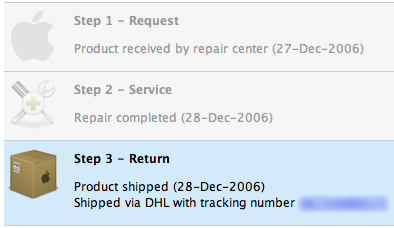
The computer arrived in Texas the next day (I could track repair progress online), repaired, and shipped back to me. I received it Thursday morning, a full one and a half days after I had sent it (amazing). What’s more, when I opened the box, I received a pleasant surprise.

Before I sent my MBP to Apple, there was only one cosmetic problem with my MacBookPro – I accidentally rubbed off part of the metallic coating on the strip below my keyboard. I don’t know how it came off, but the discoloration really annoyed me. However, since this distortion was of my own doing and therefore not covered by the one year warranty, I could not ask Apple to fix it. However, when I opened that box that day, not only had they fixed my CPU (new logic board), but they had also replaced the distorted part below the keyboard. They also managed to replace my worn trackpad, spacebar, and top outer case). It was unexpected, un-asked for, and completely generous. Now my computer is like new, no hiss, AND no distortions.

Now that I’m done praising Apple with anecdotal evidence, I want to offer some suggestions about purchasing a new Mac. When you are lucky enough to be in the Apple Store purchasing a brand new Mac, you will probably be asked any number of questions by the sales representative – however, you can definitely count on being asked the following two questions:

  1. Are you interested in purchasing AppleCare for your new Mac in order to protect your purchase with an extended warranty??
  2. Are you interested in purchasing Dot Mac for your new Mac in order to enhance its capabilities and give you a variety of helpful online tools??

Let me first address these questions together: You won’t need either immediately, if at all. Now let me address them separately:

applecare.png

AppleCare is an extended warranty. While extended warranties are helpful in some (rare) situations, the vast majority of them are a large waste of money. However, since early adopter warnings do not seem to work for some people (like me), one would still argue that its always good to be protected. Although that’s true, what the Apple sales team rarely mentions is that for the first 90 days, you get complimentary technical support from Apple. Also, and more importantly, for the first year from your purchase date, you get free hardware repairs. I have taken full-fledged advantage of Apple’s free year of repairs, and have sent in my Mac several times already to fix little issues here and there (see above).

What is even more interesting is that Apple states that their AppleCare Plan extends your support to THREE years from the original purchase date. However, you get the first year free anyway, so in reality, when you buy AppleCare, you are purchasing two years of extended warranty, not three. Basically, I would recommend that any decisions about AppleCare for a new Mac be made a little less than a year after purchase, since you will not be purchasing anything you’re not getting with your new Mac anyway.

dotmac.png

The same can be said about Dot Mac (.Mac). The Apple sales team does a very good job selling people .Mac with their new computer, but in reality, there is no need rush to purchase .Mac. Some would argue that .Mac is a complete waste of money that should come with every new Mac anyway, and although I would agree completely, I still would like to offer this bit of advice for those interested in .Mac: you don’t, by any means, have to purchase it at the time of new Mac purchase. In fact, the second you start up your new Mac, you will be asked if you would like a free 60 day trial of .Mac, whether you purchased it for a year or not. You can also activate your free trial any time after that too! Basically, I recommend that any decisions about purchasing .Mac be made only after you have tried the service for free for 60 days. Even then, if you’re considering purchasing .Mac, check out some alternatives before buying anything.

Happy Purchasing, and Holidays 🙂

A Closer Look at Windows

December 1st, 2006

windows-xp-logo-glass-small.jpg

To go along with the new sidebar section I added today that lets you see all of the posts associated with your operating system (if that’s what you are looking for), I thought I would have a post dedicated to the Windows users. With that said, here goes:

Have you ever wanted to know how to turn off those pesky start-up programs that seem to just pop up when you start your computer. If so, there are two places that you can find (and disable them). The first place is in the start menu: Start –> All Programs –> Startup. While this is the logical place for your startup items, it by far isn’t where the majority of them are.

You can find more startup items by going to Start –> Run and typing “msconfig” without the quotes. This will bring up a window with a few tabs. If you click the Startup tabs, you will see the programs that are set to run when your computer starts. Be extremely careful when unchecking items in this tab – you could mess up your computer. Therefore, a good rule of thumb is to not uncheck any program that you do not recognize.

That little trick has helped me get rid of spyware and program annoyances in the past, so I hope it helps you too. You can find more windows commands here.

PS: My goal is to post both Vista and Office 2007 reviews sometime this year for you windows users, so be on the look out for those!

OSX Tips and Tricks

November 10th, 2006

bulb

I was a Windows guy for the majority of my life, right up until I received my first Mac Mini two years ago. Throughout the whole time that I was a Windows user, the only time I would find out little tricks to help me do my day to day tasks was when a new version of Windows came out, and they had added new features.

OSX on the other hand, seems like more of an onion to me, the deeper you dig, the more layers you find. Such is the case with these helpful hints for OSX. The people over at Apple Matters did a great job compiling this list, and the people in the comments also have helpful things to add. Note: if you have a single button mouse/trackpad, where it says “right click,” substitute with “control-click.”
Some of my favorites are below:

  • Press the Tab key in Exposé to cycle through open applications.
  • Press the ` key in Exposé to cycle backwards as per the previous tip. ( ‘ is the key Tab and left of the 1 key).
  • Press Command-Q to close applications when command-tabbing. This is possibly the fastest way you’ll find to close several applications in quick succession.
  • Macs with remote controls can be put to sleep by holding down the play button on the remote.
  • To select a block of text, click the start position, then Shift-click the end position – this one is awesome.
  • We all know Command-shift-4 to capture a selection of the screen, but don’t forget pressing the Spacebar will toggle between selection mode and select whole window mode.
  • Hold the Option key will clicking the Zoom button (green button, rightmost of three in the top left corner of windows) switches the zoom state of all windows in the selected application.
  • Option-click the minimize button minimizes all windows in the application – and makes for a really cool animation (hold the shift key too if you want to slow it down to see it more easily).
  • CTRL + Scroll wheel on the mouse zooms in on the screen, then move the mouse around to move the screen around.
  • Option + Delete will delete a track in iTunes regardless of where you are, library, playlist, or otherwise (this one is really helpful)

You can find the entire collection of tips and tricks here. There are a couple more cool tricks I found over at Silver Mac including one about a third Minimize effect for the dock called Suck. Check it out here.

Keep Your Contacts, Easily

November 3rd, 2006

Plaxo

Between high school, college, graduate school, work, and, well life in general – you’re bound to meet a lot of people. Business cards get lost, emails get changed, phone numbers come and go, and screen names get forgotten. Not anymore.

Plaxo is a company started in 2001, devoted to keeping people’s contact information current, and in the hands of people you think should have it. In addition to Address Book integration (on OSX), and Outlook integration (on Outlook), it has a really nice website that is quite easy to use. Other features include mobile phone integration and Gmail contact import. Plaxo is great for the business world, as well as just keeping in contact with your friends. It allows you to send out your updated contact information to all of your contacts, as well as request them to confirm the contact information you have for them.

Plaxo

You might say well I keep my contact information updated through sites like Facebook, etc. Facebook used to contain a feature that allowed you to download your friend’s contact information into the vCard format. Now that’s all gone. Plaxo is now the best way to keep your contact information up to date.

The first thing I thought of when I first heard of this site was privacy issues – are they going to share my information with anyone? Rest assured, Plaxo upholds a strict privacy policy and is completely secure to hold your contact information. Currently it has 15 Million+ members, and its growing significantly every day.

I highly recommend you guys check Plaxo out, and add me as a contact (eugene AT gordin DOT net).

Let Information Come To You

September 20th, 2006

rssfeed.png

As I’m sure you guys probably know by now, I read a large variety of websites on a daily basis, scouring the web for all that is new and interesting. However, of this large variety, I used to frequent the same 30 websites everyday, jumping from site to site after reading the new articles, and then checking back throughout the day for changes. This process was extremely inefficient.

Enter RSS feeds. RSS stands for Really Simple Syndication, and RSS can completely change how you browse the internet. Basically, RSS technology allows websites to offer feeds, or a up-to-the-minute list of articles, that people can subscribe to. Each time someone posts something on an RSS-enabled website, that article is added to the website’s RSS feed, and a notification is sent out to any subscribers.The beauty of RSS is that the notification doesn’t merely say that something on the website has changed – the notification is the headline and a portion (if not all) of the article itself. These RSS notifications can be gathered from almost all of the websites by any number of RSS Readers (or aggregators).

Some RSS readers are browser based, some are web-based, and some are program based. Below are some you can check out:

Web Based:

Browser Based:

Program Based:

OSX

Windows

Personally, I use Google Reader and I love the simplicity, labels, Google Account integration so I highly recommend that one, though there are other very good RSS readers out there. In fact, you can see all of my subscriptions by subscribing to this link, or sign up for Google Reader here.As time passes, more and more websites add RSS feeds – news sites, fashion sites, technology sites, law sites, music sites, library sites, and blogs (of course), pretty much all major sites have feeds that you can subscribe to. Any site that you see has icon above somewhere on it, has an RSS feed you can subscribe to. You can even have your RSS News feeds come to you in a newspaper format!RSS is a very efficient way to browse the web, and I highly recommend you take advantage of it.

Incidentally, if you want notification every time I have a new interesting find, subscribe to this link ;) . Happy Browsing!

An Update That Updates

August 25th, 2006

adblockplus.png

First of all, I’m back from Europe now, and I guess from Southern California too, so I should be posting regularly again.

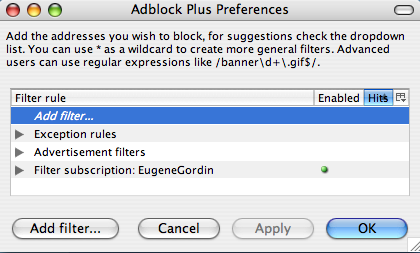
A couple of months ago, I wrote about absolutely must have Firefox Extensions, including Adblock. Well, little did I know but development for the adblock extension stopped a long time ago update: has split between a number of different authors, and now a better version was available: Adblock Plus. It has tons of bug fixes and added features, of which my favorite is subscriptions (note: as KNK points out, there area few different choices when it comes to Adblock, I however use Adblock Plus).

Basically, instead of importing a list and then slowly shaping it to fit all of the sites that you visit, you can subscribe to a list that someone already has and keeps updated. This way, everytime that person updates their filters, you automatically get the updates too. Very cool stuff and I have my list up for all of you to subscribe to if you’re interested. You can find it here (for a direct link, see my post in the comments).
I cannot stress how much better the internet is with adblock plus (and firefox for that matter), so I highly suggest you guys check it out.

my writing

my website is a collection of my work and writing since 2004, so please don't be surprised if things seem a little outdated, particularly in the technology section. That said, the concepts behind most posts should be interesting given all that's happened since they were written so enjoy!