I Use This

June 28th, 2007

I Use This

People sometimes ask me how I find out about new versions of the software I use. Since I use a Mac, there are several options such as MacUpdate, Version Tracker, and different Mac blogs. However, the best one isn’t any of those, its a site called I Use This.

I Use This is a very unique approach to software management, because it adds an element of social networking to it. Basically, when you create a (free) account, you go through the VERY comprehensive IUseThis application directory and select the software you use. To speed up this process, you can browse the list of applications by their popularity, and then search for the ones you didn’t necessarily find in the list. For an example, you can check out my IUseThis profile, here. You can even add friends, and browse the apps they use to see if there’s any new apps you don’t have.

That’s great Eugene, very nifty, but how do I get updates on the software I use? Well, once you create an account, and pick the software you use, IUseThis automatically generates an RSS feed for you that you can subscribe to, issuing a new post to you when there’s an update for one of the the apps on your list (see my post on RSS if you don’t know about it). Very cool. But it doesn’t just stop there, you can also subscribe to any member’s feed, so you can get updates even when you don’t have an account.

Although IUseThis is currently for Mac only, they are reportedly working on a Windows side, so stay tuned. Either way, check IUseThis out, and stay in the know!

Also, as a sidenote:

I wish I had a cool total number of posts posted to tell you about. I wish I had done this post a while ago, considering the anniversary is almost over. But, nonetheless, June marks the one year anniversary of Interesting Finds, and I am pleased to offer more than 50 posts (58 to date!) with tips for Mac, Windows, and everything in between. Hope you’ve enjoyed it, and as always, I’m always happy to receive feedback!


Clean Up, Automatically

June 28th, 2007

Hazel

I’m pretty anal about my stuff. Ask my friends, they’ll undoubtedly agree, I like to keep a clean house. Therefore, just as I like my room clean, I like my computer clean too, especially when it comes to my desktop.

As announced at WWDC, Mac OS X 10.5 Leopard will include a “new” desktop feature called Stacks, which basically allows you to quickly access your downloads folder in a Apple-esque, beautiful way. The reason I have the word new in quotes is because this feature is technically available right now in OSX 10.4 Tiger, albeit not as pretty. I used to use this method to access my Applications, before I realized that Quicksilver blew this method out of the water.

Currently however, most people’s download folder (on a Mac) is their desktop, which tends to lead to uncurtailed clutter, only justified by easy access to the files you just downloaded. Stacks (in Leopard), and moving your downloads folder to somewhere other than the desktop and using the folder method (in Tiger, mentioned above) can help clean up this clutter, but both don’t quite solve the problem.

In fact, both methods move your downloads away from your desktop, like throwing all of your clothes in your closet and shutting the door, merely hiding the problem instead of fixing it. That’s where Hazel steps in, cleaning up your closet folders based on whatever criteria you want. Let me give an example:

Since I read a lot of music blogs, I often find myself downloading single mp3s here and there that I find in posts. These files then sit in my downloads folder until I drag them into iTunes into my Music To Explore playlist. However, with Hazel, I can automate this action, telling Hazel to monitor my Downloads folder for mp3 files, and, when it finds some, to add them to my Music To Explore playlist and then delete the files from my Downloads folder. This is all done VERY simply with Hazel’s straightforward interface, and rules can be created to do all kinds of interesting things. I quote from TUAW:

“Hazel can automatically import image files into iPhoto, music into iTunes, add Spotlight comments, organize files into folders and even subfolders, add Finder color labels to files, run AppleScripts and so much more. Hazel can even manage your Trash for you by setting a specific time frame after which older (but not all) files should be deleted, or even a size limit that the Trash should be kept under (say, 2 GB). All this is done completely and transparently in the background, allowing you to get things done while Hazel works its magic.”

Hazel is a very cool program, and can help remove the clutter on your Mac, regardless of where the clutter is. Check it out at Noodlesoft, its got a free demo version on the site and the program is only $16. If you have any questions on how to set up Hazel, leave me a message and I’ll gladly help you out!

Image to Icon

June 21st, 2007

FastIcns

With the release of Parallels 2.5 (and 3.0 now for that matter), I found myself in need of icons to replace the ugly Windows ones that would pop up in my dock when I ran a windows program. So I searched the regular places for icons, but often found images (jpeg, png, gif) not icons that I liked.

Therefore, on my search for a program that would convert images to icons, I happened upon FastIcns, a program that lets you drag image files into it and it will automatically let you save it as an icon of all kinds of sizes (even 512×512 for Leopard Support!). The cool thing about the program (other than the simplicity of it all), is its interface.

autocad

Once you run the program, it opens a revolving cube that you can drag images to from Finder. It’s by no means a necessary feature, but a unique interface that made me appreciate independent Mac developers, yet again.

Once you dragged an image file to the cube, double click on the cube itself to save the image as an icon. I choose the “Resource Fork” filetype and install the icon using the “Get Info” method using Macworld’s simple instructions:

  1. In the Finder, select the file or folder whose icon you’d like to use.
  2. Hit Command-I (File: Get Info).
  3. Click on the small icon image at the top left of the Get Info window.
  4. Hit Command-C (Edit: Copy).
  5. Close the Get Info window.
  6. In the Finder, select the destination file or folder for the custom icon.
  7. Hit Command-I to open the selection’s Get Info window.
  8. Click the small icon image at the top left of the Get Info window.
  9. Hit Command-V (Edit: Paste) to paste the custom icon.
  10. Close the Get Info window.

Try FastIcns out for yourself, its really quite simple and a great little too (and free to boot!). Check out the program and let me know what you think!

A Smarter Clipboard

June 21st, 2007

QuicksilverClipboard

Have you ever copied something from one place, intending to paste it somewhere else but you never actually pasted it? Later you realize that you have since copied something else to your clipboard, and that first clipping is now gone? I do it all the time. I just forget that I wanted to paste that paragraph or message, and move on to copying other things.

Well, luckily our good (and extremely helpful) friend Quicksilver has the perfect solution for this – the clipboard module. Basically, once you install it, it keeps track of the last 50 or 100 items on your clipboard, and allows you to easily access and paste them, even after you copied something else. To try it out:

  1. Open your Quicksilver preferences
  2. Click on the Plug-ins button in the toolbar
  3. Click on the All Plug-ins section in the left column
  4. Look for and check the box next to the Clipboard Module (this should install it)
  5. Once installed, click on the Preferences button in the toolbar
  6. Click Clipboard in the left column
  7. Check the capture history box
  8. Choose how many clipboard items you want Quicksilver to keep track of
  9. Check the Hide after pasting button (optional)
  10. Close the preferences window

You’re all done. Now when you want to see your clipboard, open Quicksilver like you normally would and press Apple+L. You should now see a clickable list of what’s on your clipboard. Just click on the item you want and Quicksilver will not only put the item at the top of the list, but also paste the item in whatever field you have clicked at the time.

Its a very simple, smart solution for a common problem. Try it out and let me know if its helpful!

The Quickest Silver Ever

March 27th, 2007

Quicksilver

I am a big fan of Quicksilver. Rare is the day that I sit in front of someone’s Mac without recommending they download it. However, it wasn’t always like this. Even as an avid reader of all kinds of Mac sites, it was only after several months that I realized how truly powerful, simple, and effective Quicksilver really is.

If you haven’t heard of Quicksilver before, it is a file launcher. I’ll provide an example: Lets suppose I needed to open up good ol’ trusty TextEdit. On a regular machine, I would go to Finder, go to Applications, find TextEdit, and double click on the icon. That seems like a lot of steps for an action I do all the time. With Quicksilver, I simply press Apple+Space, start typing the first several letters of TextEdit, and it brings up the TextEdit icon for me, and I simply press return to open the program. Quicksilver does all of the finding for me. All I need to do is know the name. It also works for your files, not just applications. It also does all kinds of other interesting things. If you’re a visual learner like me, there are tons of Quicksilver tutorials on YouTube (like this one). Sounds both helpful and a little daunting right?

Luckily, LifeHacker, a website that I read daily has offered a Beginner’s Guide to Quicksilver, which, in very basic terms explains what Quicksilver is, how to install it, and several great ways to use it. This is the first part in a multipart series, and I will update you guys on when new parts come out.

I highly recommend every Mac user get and use Quicksilver (its 100% free!) as well as read the LifeHacker guide. It is by no means a “poweruser” tool, and is an extremely useful addition to any Mac.

Sensitive Screensaver

February 25th, 2007

SoundStream

Okay I’ll admit it, I don’t use screensavers – if I’m not using my computer, I want my screen dimmed and my battery preserved. However, some people swear by them, and for them I recommend a new screensaver for OSX called SoundStream.

Soundstream works by listening to your Mac’s built in microphone, and then visually responding to the ambient noise around, or whatever is coming from your speakers. Its much simpler to see than to explain with words, so check the demo. The effect is very fun to play with, so you can get the screensaver here.

Thanks to Digg.

Backup Your DVDs

February 13th, 2007

HandBrake

Recently I developed a new obsession – The West Wing. I have watched almost 4 seasons in about 2 months, and its utterly amazing. I bought all 7 seasons on DVD, which I would watch at home or on my computer when I was on winter break. However, now that I’m back at school, watching is a little more complicated, since I’m not always home and rarely have my DVDs with me. What I do always have with me is my 5G Video iPod, which rarely leaves my side.

I’ve never been one for DVD ripping, since in the early days of DVD ripping were slow and unreliable. However, with processors as fast as they are now, and programs as simple as ever, DVD ripping has now become painless, fast, and easy. The program that I currently use is called Handbrake, which lets you start ripping your dvds in seconds, only requiring a few configuration steps. Handbrake by itself lets you rip your dvds to both iPod format and not, using either the ffmpeg or h.264 plugin at any combination of frame rate and resolution. However, the simplest way to rip your dvds to iPod is to use a simplified version of Handbrake called Instant Handbrake. Instant Handbrake (same site) has you ripping your DVDs to iPod format in seconds.

MediaFork

The interesting part writing about this right now is that development for Handbrake has almost completely stopped. The program works well and has very few bugs, but no new features have been added in a long time. However, several new developers have picked up where the Handbrake developers left off, with a new program called MediaFork. MediaFork has several new features that Handbrake does not (and will never) offer, but it is currently in beta.

If you are interested in backing up your DVDs either to your harddrive, iPod, or both, I highly recommend you use Handbrake and keep an eye on MediaFork. For those of you who already use HandBrake, what configuration settings have you found that produce the best results?

The Future Is Now, and It’s Amazing

December 31st, 2006

Parallels Desktop

Well, the future at least in terms of computers. More specifically, the future in terms of how Apple can live to compete, without compromising quality. Okay, enough generalities.

I’m talking about Parallels Desktop for Mac. I’ve written about it before, but a lot has changed since I wrote about it last. The Parallels development team have been working overtime on creating a product that has truly surpassed people’s expectations for running Windows software on their (Intel) Macs. As I write today, the last day of 2006, the Mac world has come a very long way in just one year. With the replacement of the old PowerPC processors to new and speedy Intel ones, Apple opened the floodgates for lots of different ways to run Windows on a Mac. At the time of this writing, none of these ways comes close to Parallels Desktop for Mac. Let me explain why.

When it first came out, Parallels Desktop for Mac offered Mac users the ability to run Microsoft Windows at full speed inside of OSX, no reboot required. For those of us who are forced to use Windows because of the lack of OSX versions of the program we need (AutoCAD, for me), this was amazing. Since Parallels Desktop for Mac came out this April, new and improved versions have been release almost twice per month, each new version adding logical and much needed improvements over the last version. However, on December 1st, the Parallels team released a beta version of Desktop for Mac that added several showstopping new features:

  • Drag & Drop from OSX to Windows: Seamlessly drag and drop files and folders from Windows to Mac OS X and vice versa
  • Auto-Adjusting Screen Resolution: Auto-adjusts the screen resolution to the actual Main Window size
  • Boot Camp Partition Booting: Boot your 32-bit Windows XP residing on Boot Camp partition directly in Parallels Desktop for Mac
  • Parallels Transporter: Migrate your Windows PC, VMware or Virtual PC VMs to Parallels virtual machines

All of these features are extremely useful and helpful, but none compare to the additional feature that this beta version introduced: Coherence. Coherence allows you to run Windows invisibly on your Mac, no windows desktop in sight, letting you work from within OSX but with your Windows programs. Simply put, Coherence mode “shows Windows applications as if they were Mac ones. Try it and enjoy best of both worlds truly at the same time. No more switching between Windows to Mac OS.”

Now I run AutoCAD on top of OSX, and never have to see the Windows interface. In fact, I can even launch Windows program from my dock. On the left is a small video I made showing how Coherence works. Basically, Windows starts up, and then disappears. I launch Windows Explorer, Internet Explorer 7, Microsoft Word 2007, all as if they are running right in OSX. You can even see how iTunes interacts with the Windows programs. Its pretty amazing, check it to the left (sorry about the quality, it was my first movie:) )

One of the best parts of Coherence mode is the fact that I can run Microsoft Office 2007 in OSX now. Why would I want to do that if I have Office 2004 for Mac already installed? Office 2004 for Mac runs incredibly slowly on Intel Macs since its not a Universal Binary, and therefore has to be run in Rosetta. On the other hand, since Windows runs at full speed in Parallels, Office 2007 is as quick and speedy as it ever has been. As a result, I almost exclusively now run Microsoft Office products in Parallels rather than OSX. Its quick, easy, and the perfect solution until Microsoft releases a new version of Office 2007 for Mac.

Check out Parallels, check out Coherence, and if you have any questions about why either one is EXTREMELY useful, let me know 🙂

Everyone Needs a Manager

November 22nd, 2006

keywordmanager.png

A Keyword Manager that is. Today’s interesting find has occupied my time for the last two days*. I wrote before about Keyword Assistant, the tool that helps you tag your photos in iPhoto quickly and easily. Two days ago, I was perfectly happy with my 12,640 photos tagged with the people in them, places they were taken, etc.

Now, with Keyword Manager, you can tag your photos not only quickly and easily, but logically too. Keyword Manager allows you to create not only keywords, but also subkeywords, and labels them as such. Let me demonstrate with a simple example.

mejoey.JPG

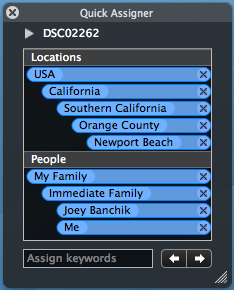
Lets say I have the photo you see on the right. With Keyword Assistant, I would merely tag this photo with the tags: Me, Joey, and Newport Beach. Seems simple enough. However, with Keyword Manager, I have assigned the keyword “Newport Beach” under the categories of “Orange County” which is under “Southern California” which is under “California” which is under “USA.” The other two tags for this photo have similar catagories for them which you can see below.

quickassigner.png

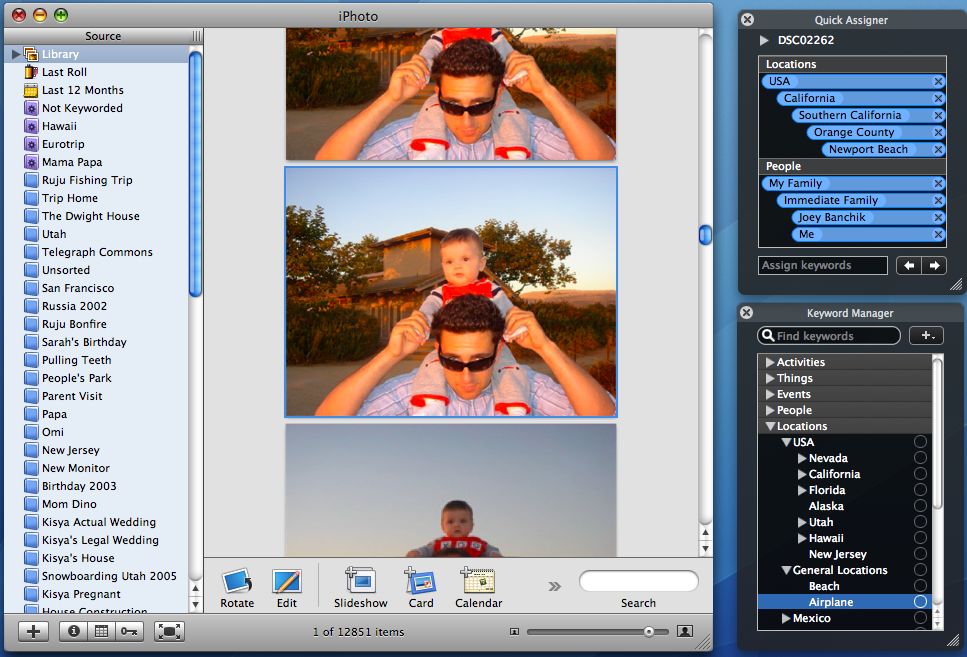
Why would anyone in their right mind do any of this, you ask? With this leveled (hierarchical) structure, I can search my entire photo library for all of the pictures that happen to be taken in the USA, in California, in Southern California, in Orange County, or in Newport Beach. Its pretty amazing. You can see the whole set up below.

kmwindows.png

Keyword Manager lets you tag your photos VERY VERY quickly, and with an incredibly nice user interface (I’m a big fan of the transparent black bezel). The program costs $19, but if you use the Promotional Code VT-542U845 (US) and VT-542E845 (EU), you can get it for $12. Its highly worth the money! Find more information about it Keyword Manager here.

Update: The benefits of keyword hierarchy in more detail are in the comments.

Everyone Needs an Assistant

July 29th, 2006

Update: I have posted about a tool that is a little better than Keyword Assistant. You can find that post here.

This post is for all of the Mac users out there, so those with a PC should look to Google’s Picasa for something similar, but I have little experience with that program.

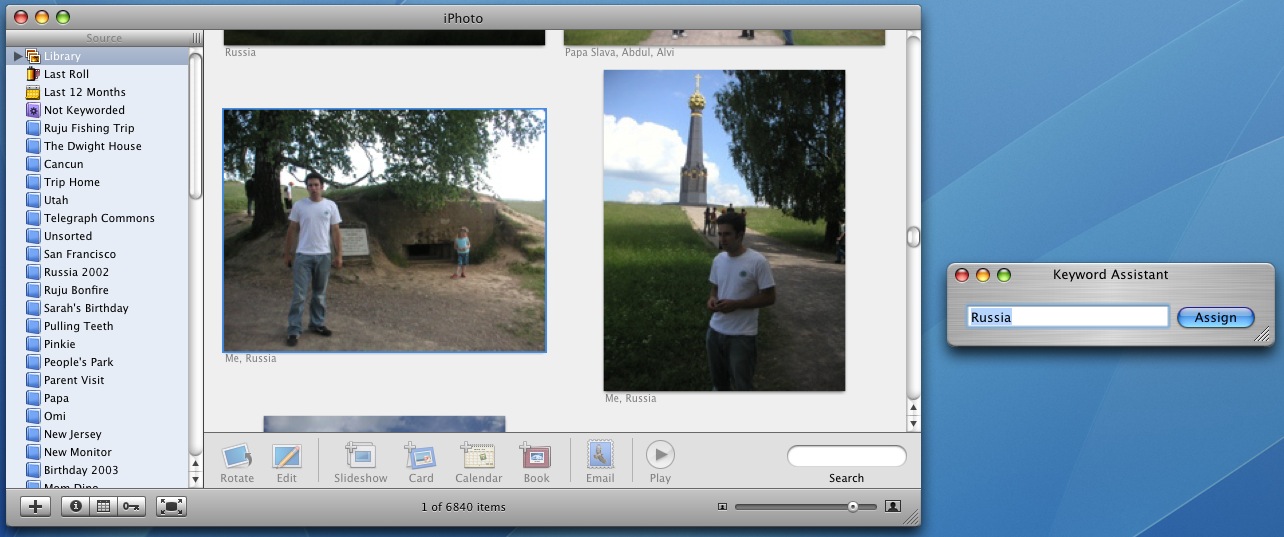
Last year, I started the long arduous process of tagging my photos in iPhoto. What is tagging you ask? Tagging is the process of assigning keywords to each photo. For example, I try to tag each photo with at least the people in it, as well as the place it was taken, etc. So now your question is, why would you waste your time doing such ridiculous things? Photo tags allow you to easily search your library for any person, place, or thing that you might have tagged earlier. Also, the tags are indexed in Spotlight, so any type of search does yield iPhoto photos that are tagged with the matching criteria.

Here is the problem: iPhoto’s tagging system is far from advanced, and has a user interface that

iphotoKA.jpg

makes it difficult to be productive. Here’s the solution: Keyword Assistant. Keyword Assistant is “a plugin for iPhoto to make keyword management easier. The main feature, pictured at right, is an auto-completing text field for assigning keywords. This is much faster than using the built-in keyword panel.” Using Keyword Assistant, I was able to tag my 8000+ photo library much quicker and easier, since a lot of my keywords were the same and only required typing one or two letters for it to autofill, well, automatically.

Unfortunately, from what I can tell, Ken Ferry (the Keyword Assistant developer) has fallen off the face of the earth, so we actually do not have a Universal Binary version of Keyword Assistant, nor do we have one that works with the latest iPhoto version. However, thanks to this link, you can get the program to work quickly and easily with some simple tinkering. Hopefully either Ken will update the program or Apple will revamp its iPhoto keyword interface – either way we have a working solution in our hands.
I highly recommend tagging your photos, and if you decide to accept that recommendation, look into Keyword Assistant – it will make your tagging lack of life much easier.

PS I’m off on a Northern European cruise so this is going to be my last post here until I get back on August 15th. However, if you are curious as to how my trip is going, I will have a daily blog which you can find here. Happy Tagging!

my writing

my website is a collection of my work and writing since 2004, so please don't be surprised if things seem a little outdated, particularly in the technology section. That said, the concepts behind most posts should be interesting given all that's happened since they were written so enjoy!