There’s a New Blog on the Block

July 9th, 2006

I would like to introduce Mike Mieler who has a new blog called Mike Went West devoted to all things music – concerts, artists, shows, reviews, etc as well as a promised regular podcast with new music recommendations as well as his favorites from back in the day.

I like to consider Mike the go-to guy as far as getting the newest and best music out there. He is the person behind my Music to My Speakers post, who introduced me to emusic.com, as well as countless artists that I am now obsessed with (despite shrugging them off when first hearing them as he will tell you :)). So go visit Mike, and bask in the glory that is musical good taste.

Chat Away The Easy Way

July 9th, 2006

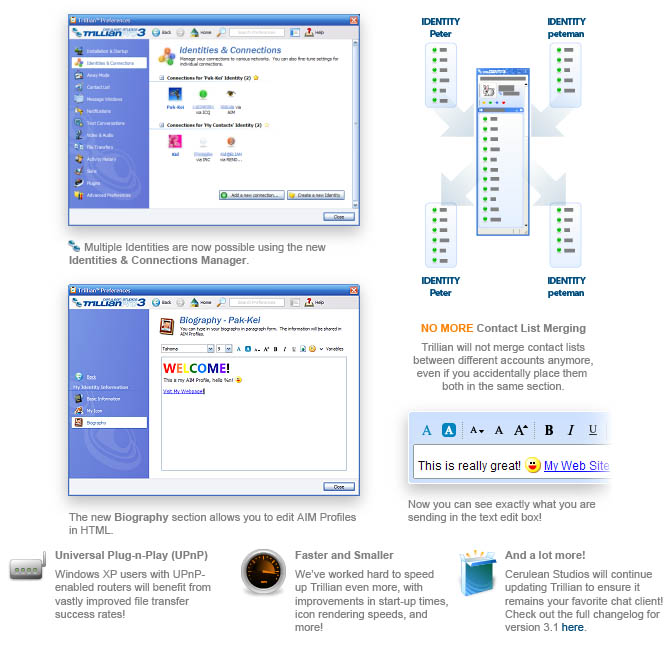
Okay, so the title doesn’t make as much sense as it could, but basically I just wanted to rhyme. Today’s topic is all about instant messaging, and the better way to do it. There are two programs that I would like to talk about specifically – AdiumX (Mac OSX) and Trillian (Windows). In concept, both programs are very similar:

Both Allow:

  • Chatting on multiple chat networks – AIM, MSN, Yahoo, ICQ, etc. without the individual programs
  • Logging all conversations for later reference
  • Customizing of the user interface
  • Renaming of contacts
  • File Transfers

Most people that I show these programs to are surprised that you can be on AIM without having to use crap from AOL, but I assure you that you can, and, in fact, should :).

Here are some of the features that I love best about each program.

AdiumX:

  • The buddy list syncs with your address book (Real names are listed instead of screen names)
  • Extremely customizable look and feel
  • Tons of plug-ins, skins, message windows, etc

AdiumX

Trillian:

  • Audio/Video Chat
  • Tons of skins and plug-ins
  • Multiple identities for multiple users
trillian.jpg

If you use any instant messenger, I highly recommend AdiumX and Trillian over the original programs.

P.S. If you would like your AdiumX contact list to look like the screen shot above, download this, unzip it, and double click on each file to install.

Curse of the Early Adopter

July 8th, 2006

earlyadoptor.jpg

Though the majority of my posts have to do with some type of software, technology, or, for lack of better words, interesting find, this post can probably be classified as a tech tip. Today I would like to heed a warning to all of those people that like to live on the bleeding edge of technology, or those that just like brand new shiny things.

New tech hardware that is released on a massive scale – whether it be computers, music players, entertainment systems, whatever – is bound to have problems, bugs, and glitches whose tried and tested counterpart just simply doesnt have. Let me offer a simple example.

I purchased my Macbook Pro 1.83Ghz on the day that they were released, and my Macbook arrived in America from China in the very first batch. As content as I am with my MacBook Pro – which is amazingly content – it has had 3 major problems, all of which have now been fixed (for monetarily free) in both mine, and all new MacBook Pros. I say monetarily because although all three repairs were completely free, two week were spent without my MacBook, which was quite a hassle (thank g-d for my mini). In fact, apparently, with my Macbook, I got relatively lucky.

My point is basically this: if you buy a new model, or pretty much any new technological innovation, you immediately assume not only the inherent risk that all technology brings with it, but also the fact that you probably will run into first revision problems that all can and will be smoothed out after some time.

For some people, this inherent risk is worth having the latest and greatest gadgets out there. However, for the majority of consumers, its exactly these bugs/problems/hassles that need to be avoided, and therefore, this information should be kept in mind.

As a side note, I was thinking of creating a website devoted to offering people advice as far as when a good time to buy a new computer (mostly Apple Macs) would be based on the large amounts of facts, information, and speculation in the computer (Mac) world. However, since I don’t foresee myself creating this type of site anytime soon, if any of you are considering purchasing a new Apple product, let me know because now might be a good time to wait just a bit for the newest version/model/revision which very well could be less problematic, buggy, and hassle-ful. 🙂

Keyboard Shortcuts for the Masses

July 5th, 2006

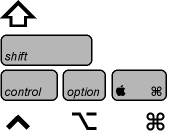
Keyboard Legend

As most people know, both Windows and OSX have tons of keyboard shortcuts built into them, all for the sole purpose of speeding up remedial tasks. Instead of listing all of the keyboard shortcuts that are out there, which you can find here (Windows) and here (OSX), I thought I would list the ones that I use on a daily basis.Global Shortcuts (windows users should use ctrl key instead of apple)
apple+c – Copies highlighted item
apple+x – Cuts highlighted item
apple+v – Pastes copied/cut item

apple+a – Selects all items
apple+s – Saves document/webpage/etc
apple+p – print document/webpage/etc
apple+w – Close current page/document/etc
apple+n – Open new page/document/etc
apple+q – Quit current program

apple+b – Bold highlighted text
apple+i – Italicize highlighted text
apple+u – Underline highlighted text
apple (hold) +click multiple objects – highlights multiple objects (not necessarily in a row)
shift+click – Highlights multiple objects in a row

Personal Favorite:
apple+t – open new tab in Mozilla Firefox (I use this one hundreds of times per day)

Apple OSX Specific:
apple+shift+3 – Take screenshot of entire display
apple+shift+4 – Take screenshot of sizable window
apple+option+esc – Force Quit Unresponsive Application
apple+tab – Switch between open windows
apple+delete – Send item to trash
F12 – Bring up dashboard (10.4 Tiger & later)

Microsoft Windows Specific:
windows – Bring up start menu
windows+e – Open new explorer window
alt-tab – Switch between open windows.

Those are the keyboard shortcuts that I use regularly, and can reallys speed things up when you are working. I also use a program called SizzlingKeys for OSX, which allows me to program my own keyboard shortcuts for controlling iTunes. That way, no matter what program I am in, I can play/pause/move toSizzlingKeys next track in iTunes with simple key combinations. SizzlingKeys is free, but if you want to enable the Pro features such as searching your library and playlists with shortcut keys, it’ll cost you $4.95. On my Macbook Pro, I have sizzling keys programed for:

apple+F11 – Play/Pause
apple+F12 – Next Track

If you can remember any of these, it will really speed up some of the repetitive tasks we all often have to do. Hope that helps!

Save Now. No Regret Later.

June 15th, 2006

So today I had a good friend call me with what turned out to be quite a typical situation. She was working tirelessly on her computer (a brand new macbook, for the record), and for some reason did not click save inside Microsoft Word. Low and behold, when she came back to her computer, the file was no where to be seen and all of her work was gone.

We have all lost work like this, and, although at the time its terrible, its actually (for the most part) preventable. Microsoft Word, as well as all of the other Microsoft Office applications have built it security options for situations just like this. Basically, Word can save your documents for you automatically at any time interval. These settings can be found in Word (or Excel, or Powerpoint) preferences, under the save tab. Just make sure to change the AutoRecover time interval to one minute and to check the box that says Always Create Backup Copy. Below is the screenshot of the window on a mac, though it should look very similar in Windows.

AutoSave

Also, while youre at it, make sure under the File Locations tab you add a location for AutoRecover files. That way, if you do lose a document, you will know where Word automatically saved it. Hope this helps!

A Backup for All Flavors

June 9th, 2006

superduper.png

Today I took up the longstanding task of finding Windows compatible Backup Software similar to SuperDuper! for OSX.

For those of you who have never used SuperDuper!, let me take this chance to proclaim it the one piece of backup software you will ever need. As far as my needs, SuperDuper allows me to create a bootable copy of my MacBook Pro’s harddrive on my 320GB external harddrive Westie, named for its Western Digital creators. On top of this amazing feature, SuperDuper has the option of either each time doing a complete backup (erase external drive partition and copy the MacBook’s harddrive), or what T-Shirt Software calls a SmartBackup (using the existing backup to only modify and add the files that have changed since the last backup). With the SmartBackup feature, I can do backups in literally fractions (very small fractions, in fact) of the time. All of these features are compounded by an amazingly user-friendly interface, and a low price of $30. To put it simply, this software is a must have if you worry about data loss (which you should).

“If this piece of software is so great, why are you looking for a Windows version?” you might ask. I’m on this mission for my father, who needs a reliable, simple, and accurate backup solution for his Windows XP box. So in my search, I have run across two solutions and it is them that I present to you today:

The first solution was suggested to me by my Guru-of-all-things-tech Jon, and is called Cobian Backup 8. Cobian Backup 8 is still in beta, and does offer a bootable backup solution. According to the website, the program ” is a multi-threaded program that can be used to schedule and backup your files and directories from their original location to other directories/drives in the same computer or other computer in your network. FTP backup is also supported in both directions (download and upload).” Though it is free, the program unfortunately seems to still be in development, and offers a bit less intuitive and user-friendly approach than the next program, Casper XP.

CasperXP

Casper XP was the other backup software I discovered in my search, and it seems to most closely resemble what I need. The program seems like the Windows equivalent of SuperDuper!, and though the price is higher, it does offer its own version of SmartBackups, which they call SmartClone technology. Though I have yet to use the program, it does seem promising. The first sentence on the website ends this great search of mine: ” Casper XPâ„¢ makes it a snap to keep a bootable backup of your Windows XP system. Just use Casper XP to copy your system hard disk to another hard disk. When your system hard disk fails or becomes corrupted, simply boot your computer directly from your backup hard disk and you’re up and running again in just seconds! It really is that easy!”

I’ll post an updated review of the program once I purchase my new MyBook 500GB External Drive and give Westie to my dad.

my writing

my website is a collection of my work and writing since 2004, so please don't be surprised if things seem a little outdated, particularly in the technology section. That said, the concepts behind most posts should be interesting given all that's happened since they were written so enjoy!