I Use This

June 28th, 2007

I Use This

People sometimes ask me how I find out about new versions of the software I use. Since I use a Mac, there are several options such as MacUpdate, Version Tracker, and different Mac blogs. However, the best one isn’t any of those, its a site called I Use This.

I Use This is a very unique approach to software management, because it adds an element of social networking to it. Basically, when you create a (free) account, you go through the VERY comprehensive IUseThis application directory and select the software you use. To speed up this process, you can browse the list of applications by their popularity, and then search for the ones you didn’t necessarily find in the list. For an example, you can check out my IUseThis profile, here. You can even add friends, and browse the apps they use to see if there’s any new apps you don’t have.

That’s great Eugene, very nifty, but how do I get updates on the software I use? Well, once you create an account, and pick the software you use, IUseThis automatically generates an RSS feed for you that you can subscribe to, issuing a new post to you when there’s an update for one of the the apps on your list (see my post on RSS if you don’t know about it). Very cool. But it doesn’t just stop there, you can also subscribe to any member’s feed, so you can get updates even when you don’t have an account.

Although IUseThis is currently for Mac only, they are reportedly working on a Windows side, so stay tuned. Either way, check IUseThis out, and stay in the know!

Also, as a sidenote:

I wish I had a cool total number of posts posted to tell you about. I wish I had done this post a while ago, considering the anniversary is almost over. But, nonetheless, June marks the one year anniversary of Interesting Finds, and I am pleased to offer more than 50 posts (58 to date!) with tips for Mac, Windows, and everything in between. Hope you’ve enjoyed it, and as always, I’m always happy to receive feedback!


Clean Up, Automatically

June 28th, 2007

Hazel

I’m pretty anal about my stuff. Ask my friends, they’ll undoubtedly agree, I like to keep a clean house. Therefore, just as I like my room clean, I like my computer clean too, especially when it comes to my desktop.

As announced at WWDC, Mac OS X 10.5 Leopard will include a “new” desktop feature called Stacks, which basically allows you to quickly access your downloads folder in a Apple-esque, beautiful way. The reason I have the word new in quotes is because this feature is technically available right now in OSX 10.4 Tiger, albeit not as pretty. I used to use this method to access my Applications, before I realized that Quicksilver blew this method out of the water.

Currently however, most people’s download folder (on a Mac) is their desktop, which tends to lead to uncurtailed clutter, only justified by easy access to the files you just downloaded. Stacks (in Leopard), and moving your downloads folder to somewhere other than the desktop and using the folder method (in Tiger, mentioned above) can help clean up this clutter, but both don’t quite solve the problem.

In fact, both methods move your downloads away from your desktop, like throwing all of your clothes in your closet and shutting the door, merely hiding the problem instead of fixing it. That’s where Hazel steps in, cleaning up your closet folders based on whatever criteria you want. Let me give an example:

Since I read a lot of music blogs, I often find myself downloading single mp3s here and there that I find in posts. These files then sit in my downloads folder until I drag them into iTunes into my Music To Explore playlist. However, with Hazel, I can automate this action, telling Hazel to monitor my Downloads folder for mp3 files, and, when it finds some, to add them to my Music To Explore playlist and then delete the files from my Downloads folder. This is all done VERY simply with Hazel’s straightforward interface, and rules can be created to do all kinds of interesting things. I quote from TUAW:

“Hazel can automatically import image files into iPhoto, music into iTunes, add Spotlight comments, organize files into folders and even subfolders, add Finder color labels to files, run AppleScripts and so much more. Hazel can even manage your Trash for you by setting a specific time frame after which older (but not all) files should be deleted, or even a size limit that the Trash should be kept under (say, 2 GB). All this is done completely and transparently in the background, allowing you to get things done while Hazel works its magic.”

Hazel is a very cool program, and can help remove the clutter on your Mac, regardless of where the clutter is. Check it out at Noodlesoft, its got a free demo version on the site and the program is only $16. If you have any questions on how to set up Hazel, leave me a message and I’ll gladly help you out!

Sensitive Screensaver

February 25th, 2007

SoundStream

Okay I’ll admit it, I don’t use screensavers – if I’m not using my computer, I want my screen dimmed and my battery preserved. However, some people swear by them, and for them I recommend a new screensaver for OSX called SoundStream.

Soundstream works by listening to your Mac’s built in microphone, and then visually responding to the ambient noise around, or whatever is coming from your speakers. Its much simpler to see than to explain with words, so check the demo. The effect is very fun to play with, so you can get the screensaver here.

Thanks to Digg.

Send Files, the Simple Way

February 25th, 2007

MediaFire

I’ve always wondered what the best way to send files from one person to another is. There are a whole lot of  options out there – yousendit, rapidshare, sendspace – but none of them compare to MediaFire.

Literally, all you have to do is click Browse, find the file, and click Upload. The upload progress is displayed very well, and the result provides you with a link, the html code for the link, and the VB code. With file transfer services like this, speed and ease is key, and this is probably the easiest and fastest service out there. Its free to boot! The only limitation is that the file size has to be less than 100mb, but thats not too restrictive, and your files currently will not be removed at any point.

If you need to transfer large files, I highly suggest you use MediaFire.

iPhoto Camera Browsing

February 24th, 2007

iPhoto

iPhoto is great. Even with my 14,000 photos, and over 400 different keywords, its still speedy. However, great is the day when I find out something new about a program I already love. Although the day I found this was a while ago, my good friend Mike the other day asked me whether it was possible to browse the photographs on a digital camera in iPhoto prior to importing them, and I remembered this great tip.

If you want to browse your camera photographs, just plug in your camera into your Mac, (iPhoto should open automatically in import mode), and instead of clicking import, press the return key on your keyboard twice quickly. This will let you see all of your photographs on your camera, and on some (probably most) cameras, you can drag and drop into your iPhoto library.

This is a cool little trick courtesy of MacOSXHints. If you want to find out more, I highly suggest you visit their incredibly helpful site.

New Year, New Updates

January 10th, 2007

2007

Happy New Year! I wanted to start this new year off by looking back at a few posts that I wrote this year, and offering some updates. As I looked back through the early posts on this blog, I noticed that my approach gradually changed as I settled into a regular pattern and tone. I’m not sure how that last sentence related to anything that comes both before and after it, but it rings true nonetheless. Here goes:

Keyboard Shortcuts

Keyboard Shortcuts

The first update I want to make is to the keyboard shortcuts post. I came across the official lists of shortcuts for both OSX and for Windows, which can be quite helpful for speeding up everyday tasks. You can check them out here:

__________________________
Replacement Icons

Tape

The second update I wanted to make was to the Icons post. Although InterfaceLift is still a great resource for icons (both for OSX and Windows), there are some beautiful icons at PixelPress Icons.

My favorite by far is the cassette icon that I now use for iTunes. Its very well done, as you can see on the left. One of the things to note about the site is that there are multiple different icons for each picture shown on the site, so be sure and pay attention to the text under the icons to see how many are in that collection.
__________________________
Backup Hard Drives

MyBook

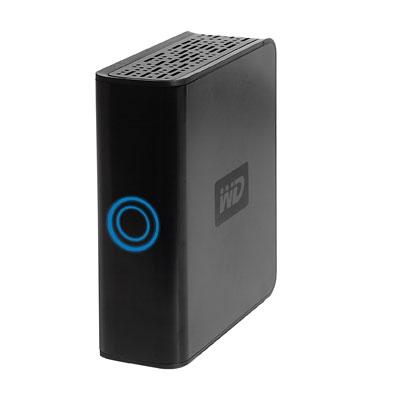
The third update I wanted to make was to the external hard-drive post. I love my MyBook drive. I’ve been using it for a while now, and its everything I need in an external drive – its small (in form-factor), big (in hard-drive size), quiet, reliable, cost-effective ($220 for 500GB), and quite stylish.

With all that, I find that I take it with me quite a lot when I travel, since it houses not only a complete bootable backup of my whole MacBook Pro, but also all of my videos and programs. Therefore, I needed some way to transport the drive that would keep it safe. The best solution I have found so far was my Tom Binh Mac Mini Bag. Since I do not travel with my Mac Mini anymore, I put my MyBook inside the case and was surprised to find that not only did the drive fit snugly and perfectly in the case, but the power brick also fits in the case right next to the drive. Its a very secure fit, and the rest of the cables fit in the outside pouch. If you are looking for a travel case for your MyBook, the Tom Binh Mac Mini case is the ideal product.

__________________________
Firefox 2.0.1 Optimized

firefox.jpg

A while back I wrote about Optimized versions of Firefox. Just as Mozilla released an update to their Firefox browser, Beatnik Pad has released a new version of Firefox 2.0.1 Optimized for Intel and PPC processors.

The optimized versions tend to speed up Firefox on certain machines. If you find that the versions do the exact opposite, you can just re-download Firefox from Mozilla’s site.

__________________________
That is all for now. Enjoy!

Behind the Curtain

December 30th, 2006

ProcessScanner
Processes

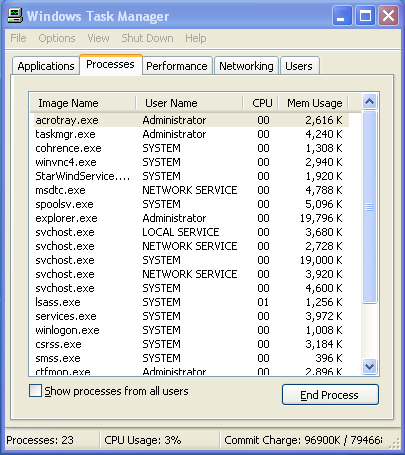
Have you ever pressed Control+Alt+Del on your PC, clicked on the Process tab, and wondered what all of those processes running in the background are? Me too. I used to first see if I could recognize the name, then maybe try to google the name, and then, well, just shut the process down and see what happens. Well, those days are over.

In a world of (pc) spyware, viruses, trojans, etc, it is important to both know, and keep track of what our computers are doing. Therefore, in order to help my favorite trifecta of Windows Defender, Spybot Search and Destroy, and AVG Antivirus, I present to you Process Scanner.

Process Scanner is an offshoot of a site called Process Library, which is exactly what it sounds like: a library of processes that run in Windows. Process Scanner is a small program that examines the processes runnning on your computer, and then sends the results to a website (anonymously for those of you in tin hats), which creates a report of what exactly each one of them is, as well as the threat level each process brings to you and your machine.

Its simple, effective, and very helpful, so check Process Scanner out.

TV Shows OnDemandLine

December 18th, 2006

dailymotion.png

Today’s interesting find is called Daily Motion, which I found through a link at one of my favorite sites, DunderBall. The site is similar to YouTube in both intention and function, but lacks the sheer amount of users and videos. Although I love YouTube, Daily Motion offers something that YouTube doesn’t, and chances are, never will – Full TV Show Episodes.

While I’m pretty sure of the illegality of putting up entire episodes of TV shows online, I plan on enjoying this site as much as possible while it lasts.

The site is quite speedy and offers a full screen (window) mode that lets you watch full episodes of almost any TV show (and almost every episode of popular shows). I wanted to see what the show Sleeper Cell was all about, and have spent the last two hours watching the first two episodes (granted, with subtitles in French, but who cares!).

Its really easy to use so check out Daily Motion if you want to know what a show is all about. I’m going back to watching Sleeper Cell. Enjoy!

Green is the New Dirty

December 15th, 2006

begreennow.png

I’ll be honest, I’m not the biggest environmentalist. I rarely recycle regularly, I drive an SUV, I’m just not “green.” However, I think I might be well on my way, since this semester I worked on a project which improved the accuracy of the Consumer Footprint Calculator, originally created by Christopher Jones.

The calculator lets you input various parts of your lifestyle (vehicle you drive, housing type, etc), and see what kind of green house gas emissions you’re creating with your lifestyle, and how you compare to the US and World Averages. My group’s improvements have not yet been implemented, so I actually wanted to share another interesting find with you along these same lines.

The find is called BeGreenNow, and it is a very well designed, similarly themed website devoted to helping people realize the impact they have on the environment. The site even helps you offset your emissions by purchasing Carbon Offsets. There is also a social networking aspect to the site, so if your friends also have accounts, you can see how your lifestyle compares to theirs. Its all very well done and very easy to use. Check it out here!

Claim Your Space

December 11th, 2006

msofficelivebasics.png

Everyone should have a domain name. I’m a huge advocate of having domain names for families (such as gordin.net), as well as for individuals (such as eugenegordin.com, which you’re currently enjoying reading). Therefore, for all of you Windows users, Microsoft is offering free domain names for you, providing at no cost:

  • Free domain name and web hosting
  • Web site design tools
  • 500MB of web storage
  • 25 email accounts
  • Web site reports
  • Search engine advertising tool

This is quite a great deal (things are just better when they are free), so I highly recommend the windows (and Parallels) users check it out here. Also, according to the good people over at DownloadSquad, if you decide to cancel your hosting with Microsoft, you still get to keep the domain.

For all of you non-Windows users, NameCheap is where I get the majority of my domain names for my webhosting company ($9 per year). That said, if you are looking for non-Microsoft hosting, I know a guy who can help you out :). Enjoy.

my writing

my website is a collection of my work and writing since 2004, so please don't be surprised if things seem a little outdated, particularly in the technology section. That said, the concepts behind most posts should be interesting given all that's happened since they were written so enjoy!