New Year, New Updates

January 10th, 2007

2007

Happy New Year! I wanted to start this new year off by looking back at a few posts that I wrote this year, and offering some updates. As I looked back through the early posts on this blog, I noticed that my approach gradually changed as I settled into a regular pattern and tone. I’m not sure how that last sentence related to anything that comes both before and after it, but it rings true nonetheless. Here goes:

Keyboard Shortcuts
Keyboard Shortcuts

The first update I want to make is to the keyboard shortcuts post. I came across the official lists of shortcuts for both OSX and for Windows, which can be quite helpful for speeding up everyday tasks. You can check them out here:

__________________________
Replacement Icons
Tape

The second update I wanted to make was to the Icons post. Although InterfaceLift is still a great resource for icons (both for OSX and Windows), there are some beautiful icons at PixelPress Icons.

My favorite by far is the cassette icon that I now use for iTunes. Its very well done, as you can see on the left. One of the things to note about the site is that there are multiple different icons for each picture shown on the site, so be sure and pay attention to the text under the icons to see how many are in that collection.
__________________________
Backup Hard Drives
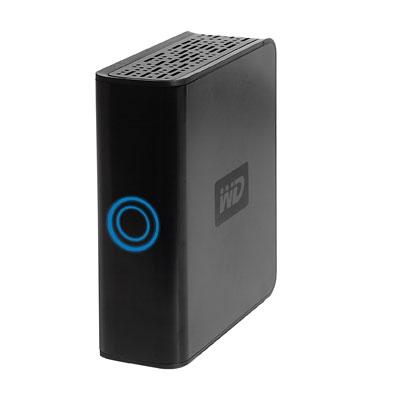
MyBook

The third update I wanted to make was to the external hard-drive post. I love my MyBook drive. I’ve been using it for a while now, and its everything I need in an external drive – its small (in form-factor), big (in hard-drive size), quiet, reliable, cost-effective ($220 for 500GB), and quite stylish.

With all that, I find that I take it with me quite a lot when I travel, since it houses not only a complete bootable backup of my whole MacBook Pro, but also all of my videos and programs. Therefore, I needed some way to transport the drive that would keep it safe. The best solution I have found so far was my Tom Binh Mac Mini Bag. Since I do not travel with my Mac Mini anymore, I put my MyBook inside the case and was surprised to find that not only did the drive fit snugly and perfectly in the case, but the power brick also fits in the case right next to the drive. Its a very secure fit, and the rest of the cables fit in the outside pouch. If you are looking for a travel case for your MyBook, the Tom Binh Mac Mini case is the ideal product.

__________________________
Firefox 2.0.1 Optimized

firefox.jpg

A while back I wrote about Optimized versions of Firefox. Just as Mozilla released an update to their Firefox browser, Beatnik Pad has released a new version of Firefox 2.0.1 Optimized for Intel and PPC processors.

The optimized versions tend to speed up Firefox on certain machines. If you find that the versions do the exact opposite, you can just re-download Firefox from Mozilla’s site.

__________________________
That is all for now. Enjoy!

My GreaseMonkey is My (Web) Co-Pilot

November 6th, 2006

GreaseMonkey

I browse a lot of websites. I’ll admit it. Sometimes I find that there is one simple way to improve a website – one minimal change – that could make it so much better. A button here, a link there. Luckily, this is where my love for Firefox Extensions comes in – the GreaseMonkey extension allows you to change pretty much anything about a website’s look, feel, or function through user scripts.

Its best illustrated with an example. I am an avid Gmail user, and find the email service very functional and simple. However, I don’t understand why they didn’t include a Mark As Read button for the inbox. It’s just asking to be there, but its not. Here’s where GreaseMonkey comes in – once GreaseMonkey is installed, I simply look for a Gmail Mark As Read Button script at Userscripts.com, a site devoted to collecting GreaseMonkey scripts.

Here’s a list of GreaseMonkey scripts that I have installed currently:

  • Google
    • Gmail Signature Float – Floats your signature above replied/forwarded message instead of below (default)
  • Facebook
    • Facebook Autologin v2 – no more having to press login despite having your login information saved
    • inYOfacebook – allows you to see people’s enlarged profile picture in search queries (very cool)
    • Facebook EZ Poke – no more poke confirmation page – it all happens with the click of the EZ Poke button
  • Last.fm
    • Chart Changes – Places a +/- value next to songs, artists, or albums tracking week to week changes
    • Artist Fan Rank – lets you know when people are in the top fan ranks for artists, songs, or albums
  • General

The vast majority of those scripts came from Userscripts.com, which has a large collection GreaseMonkey scripts you can search through. Its a great resource, and the key to adding website functionality that you have always wanted. There is also a variety of sites that have discussed the best GreaseMonkey scripts out there.

My suggestion is to install GreaseMonkey, check out the scripts that I use and see if they are beneficial to you, and then search for the sites you visit on Userscripts.com. GreaseMonkey can be an amazing asset, and its quite easy to use to boot! Enjoy!

Faster FireFox 2.0 (For Mac)

October 29th, 2006

firefoxbuild.png

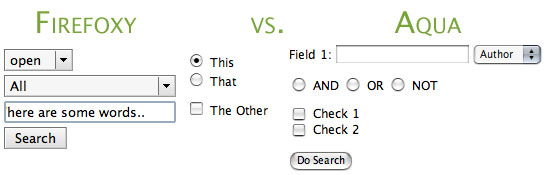
Firefox is quite a universal application (no pun intended). With limited exceptions, it can be run on Windows or OSX, regardless of Intel or Power PC processors. However, Firefox for OSX can also be optimized for each specific type of processor, greatly improving speed and reliability.These builds also can add Aqua form widgets to Firefox, making forms show up in OSX-style instead of how they show up regularly.

Now that Firefox 2.0 has been released, here are the optimized builds for Power PC and Intel Macs, courtesy of Beatnik Pad. The optimized versions are provided under the name Bon Echo, since the Firefox name (and icon) cannot be used for non-Mozilla releases.

G4-optimized Firefox 2.0

G5-optimized Firefox 2.0

Intel Mac-optimized Firefox 2.0

Thanks again to Beatnik Pad for these! Note: If you have any problems with certain web pages not recognizing your browser as Firefox, be sure and check out this page (its a simple fix). Enjoy!

Let Information Come To You

September 20th, 2006

rssfeed.png

As I’m sure you guys probably know by now, I read a large variety of websites on a daily basis, scouring the web for all that is new and interesting. However, of this large variety, I used to frequent the same 30 websites everyday, jumping from site to site after reading the new articles, and then checking back throughout the day for changes. This process was extremely inefficient.

Enter RSS feeds. RSS stands for Really Simple Syndication, and RSS can completely change how you browse the internet. Basically, RSS technology allows websites to offer feeds, or a up-to-the-minute list of articles, that people can subscribe to. Each time someone posts something on an RSS-enabled website, that article is added to the website’s RSS feed, and a notification is sent out to any subscribers.The beauty of RSS is that the notification doesn’t merely say that something on the website has changed – the notification is the headline and a portion (if not all) of the article itself. These RSS notifications can be gathered from almost all of the websites by any number of RSS Readers (or aggregators).

Some RSS readers are browser based, some are web-based, and some are program based. Below are some you can check out:

Web Based:

Browser Based:

Program Based:

OSX

Windows

Personally, I use Google Reader and I love the simplicity, labels, Google Account integration so I highly recommend that one, though there are other very good RSS readers out there. In fact, you can see all of my subscriptions by subscribing to this link, or sign up for Google Reader here.As time passes, more and more websites add RSS feeds – news sites, fashion sites, technology sites, law sites, music sites, library sites, and blogs (of course), pretty much all major sites have feeds that you can subscribe to. Any site that you see has icon above somewhere on it, has an RSS feed you can subscribe to. You can even have your RSS News feeds come to you in a newspaper format!RSS is a very efficient way to browse the web, and I highly recommend you take advantage of it.

Incidentally, if you want notification every time I have a new interesting find, subscribe to this link ;) . Happy Browsing!

An Update That Updates

August 25th, 2006

adblockplus.png

First of all, I’m back from Europe now, and I guess from Southern California too, so I should be posting regularly again.

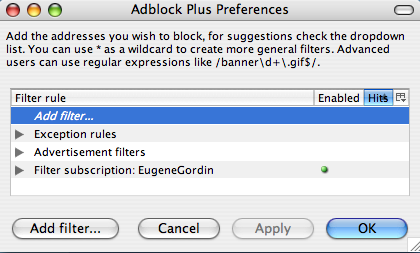
A couple of months ago, I wrote about absolutely must have Firefox Extensions, including Adblock. Well, little did I know but development for the adblock extension stopped a long time ago update: has split between a number of different authors, and now a better version was available: Adblock Plus. It has tons of bug fixes and added features, of which my favorite is subscriptions (note: as KNK points out, there area few different choices when it comes to Adblock, I however use Adblock Plus).

Basically, instead of importing a list and then slowly shaping it to fit all of the sites that you visit, you can subscribe to a list that someone already has and keeps updated. This way, everytime that person updates their filters, you automatically get the updates too. Very cool stuff and I have my list up for all of you to subscribe to if you’re interested. You can find it here (for a direct link, see my post in the comments).
I cannot stress how much better the internet is with adblock plus (and firefox for that matter), so I highly suggest you guys check it out.

Those have to be extensions!

June 12th, 2006

extensions.png

I was going to get right into this post, but I realized that I should step back and let anyone who doesn’t know, find out. If you are still using Internet Explorer, and you care about your security, sanctity, and sanity, please download Mozilla Firefox and never use IE again. Firefox has unparalleled advantages over IE, including tabbed browsing, enhanced security, and extensions.

It is these extensions (or plugins) that really separate Firefox from any browser, including Safari. The two extensions that I personally cannot live without are Tabbrowser Preferences and AdBlock.

I use Tabbrowser Preferences in order to force all of my new browser windows to open in tabs as opposed to new windows, significantly speeding up browsing and allowing people who like tons of different pages open at the same time to organize their browsing in one simple window.

While Tabbrowser Preferences is a very helpful browser add-on, AdBlock on the other hand should be a requirement for anyone who visits any webpage. AdBlock is a content filter that allows you to block any kinds of images or inline frames both directly, and using wildcards. Furthermore, AdBlock allows the importing of other people’s AdBlock databases, which spares you the work of having to manually block ads yourself. For everyone’s convenience, I have attached my well refined and time tested adblock list, and encourage all of you to download it, and import it once you download AdBlock.

To import a list into AdBlock, install the AdBlock extension, download my AdBlock Filter File, restart Firefox, go to Tools–>AdBlock–>Preferences and in the Preferences window go to AdBlock Options–>Import Filters. Point adblock to the Adblock Filter File you downloaded and you are all set.

Let me know if you have problems with either of these extensions, and I’ll gladly help you out. If you are interested in finding more useful Firefox extensions, check out Cnet’s three part article on the Best Firefox Extensions.