A More Useful Search

February 29th, 2008

Inquisitor3.pngOne of my favorite applications for Safari is Inquisitor. It was this program, along with SafariBlock, that made my transition to Safari from Firefox easiest.

Those of you who have used Firefox will recognize the idea behind Inquisitor. And those that have used Apple’s built in Spotlight will immediately recognize Inquisitor. In fact, Inquisitor’s tagline is: Spotlight for the web.
inquisitor.png

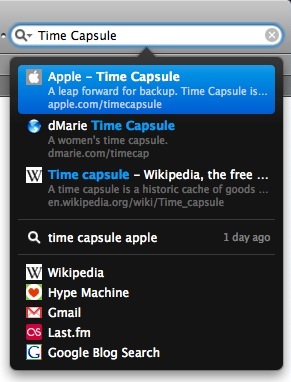
As you can see, with it installed, you simply start typing in Safari’s search bar and Inquisitor will give you results, suggestions, and autocomplete, all in a beautiful interface.

That’s useful and great, but what I love about Inquisitor is that it extends Safari’s search capability by letting you search not only Google (which is standard in Safari), but pretty much any site that has search capability. Let me show you what I mean. Let’s say I wanted to search for Time Capsule (because I’m getting mine today).

With Safari by itself, I would type it into the search box and press return for my results. But with Inquisitor, not only does it autocomplete as I type, it also begins to list search results automatically for me. And if that wasn’t enough, it lets me search Google, Wikipedia, Google Blog Search, and anything else that I have it set to search – just with the click of a button!

This is a great little feature and I use it all the time. And adding a new place to search couldn’t be easier:

  • Go into Safari’s preferences, and click on Inquisitor
  • Check the “Display Additional Search Engines” box and click “Edit Sites”
  • In the window that opens, either choose from on of the many sites built in, or choose “New custom search shortcut” from the little + arrow in the bottom left corner.
  • If you’re adding a custom one, all you have to do is replace the query with %@.

I have listed some examples below from the ones I use:

  • Wikipedia: http://en.wikipedia.org/wiki/Special:Search?search=%@
  • Hype Machine: http://hypem.com/search/%@/1/
  • Gmail: http://mail.google.com/mail/#search/%@
  • Last.fm: http://www.last.fm/music/?q=%@
  • Google Blog Search: http://google.com/blogsearch?hl=en&q=%@

I bolded the %@ for emphasis so you know how to the setup works. Its a very useful feature in a very useful little app. Oh, and its free, so go download it!

Impressed at 30,000ft

February 22nd, 2008

va.png

Right now I find myself aboard Flight 763 to Las Vegas, and the only word I can muster at this point (other than those that I’m typing, of course) is: amazing. The cabin of the plane looks like nothing short of a classy nightclub, backlit with blacklights and soothing lavender neon. The divider between first class and coach isn’t a trendy curtain that the flight attendants censoriously shut, but a transparent purple plexiglass enclosure that seems to just be some sort of soon-to-be fishtank they’d fill if only the FAA would let them bring liquids onboard.

IMG_0057.JPG

Now I consider myself a person of technology, a person in the loop on what’s going on and what’s to come, at least technologically. But here and now I can honestly say that I’m impressed, which is no small feat in terms of gadgets and gizmos. I’ve been on Jet Blue, I’ve traveled on a wide array of flights both international and domestic, but not like this.

IMG_0056.JPG

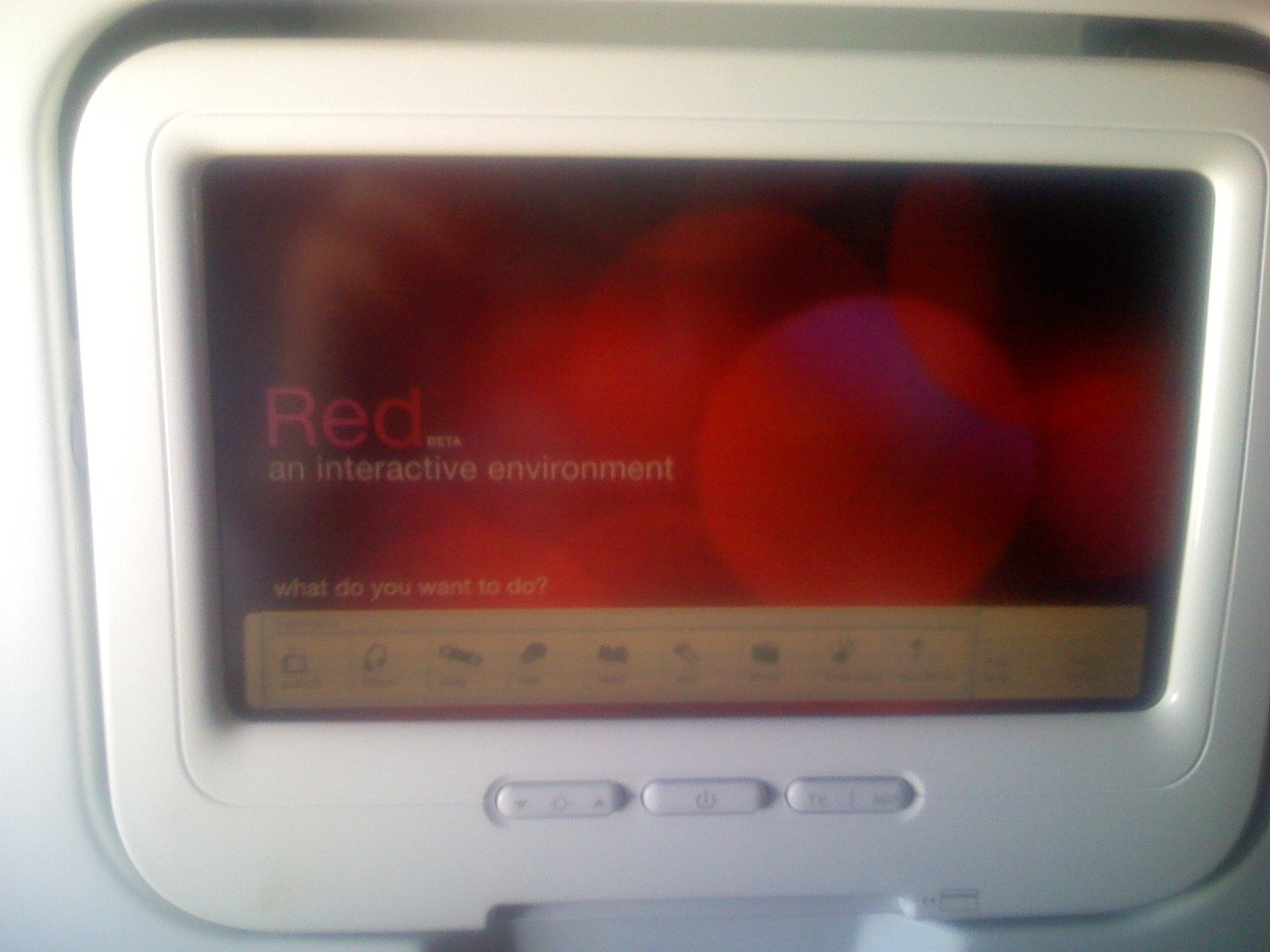
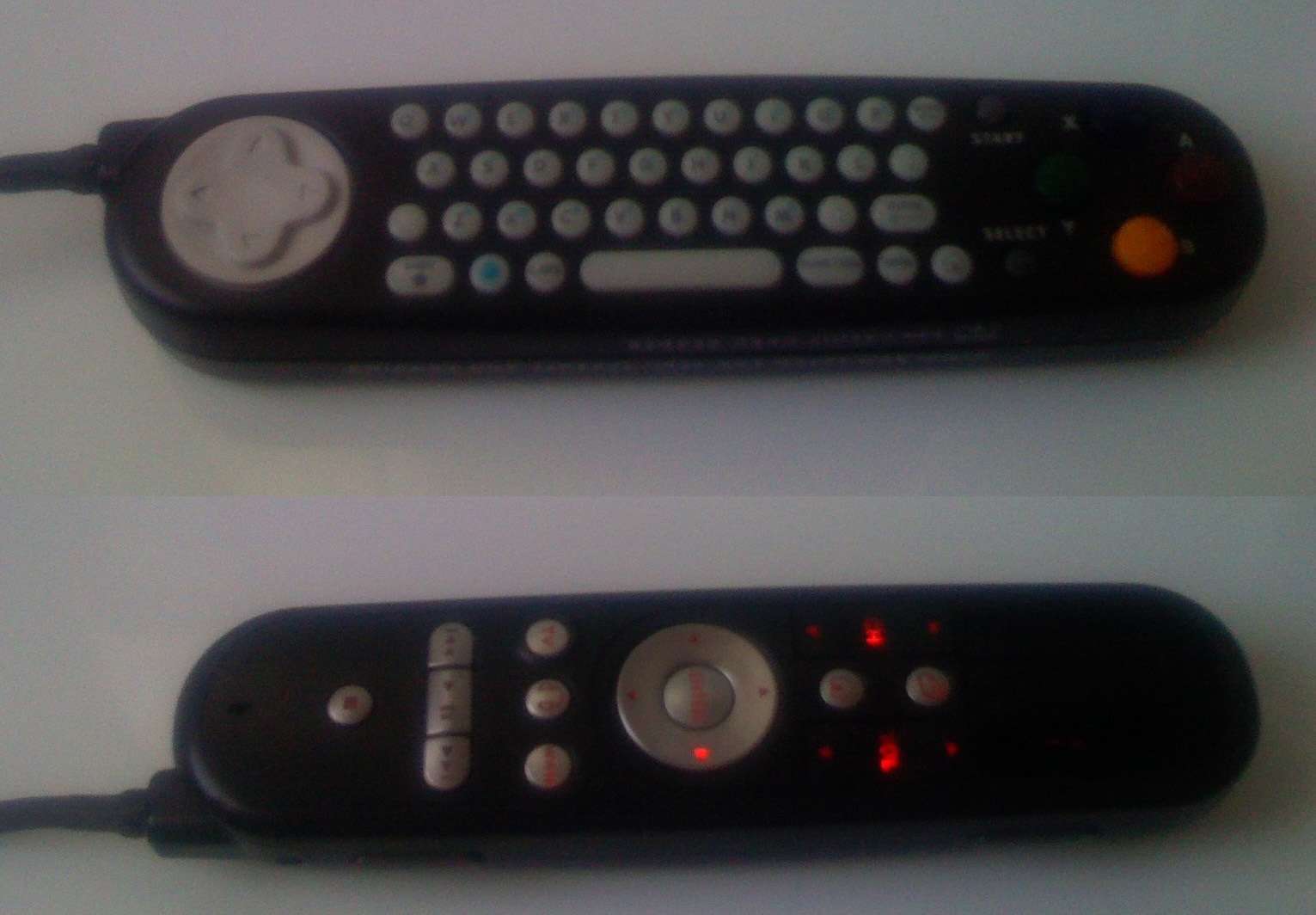
This is my first Virgin America flight, flying coach from San Francisco to Las Vegas. In front of me is what at first glance resembles your typical monitor, which seems to be posing a simple question: what do you want to do? But my choices are no longer limited to several tv channels (which was no small achievement back in the day) – my choices are: Watch, Listen, Play, Talk, Read, Eat, Shop, and Kids Play (see the photo on the right). What’s different here is the fact that the monitor before me is touch-screen, letting me interact with my newfound choices in the most intuitive and simplistic of ways. For those that long for a (dated) QWERTY experience, that too is possible by sneaking a peak at the left armrest, which reveals a fully retractable remote control, keyboard, and gamepad (at left).

IMG_0058.JPG

In the first draft of this post, I went into great detail about what the flight offers. All that has now been deleted. I realized that I will never be able to explain it as well as you can see it for yourself, on the Virgin Atlantic website. I HIGHLY recommend you check it out. Here are a few of my favorite finds while aboard:
  • The ability to instant message not only seat to seat, but also in chat rooms, either with the entire flight, a select group of passengers, or specific to a TV channel (in split window with the channel itself). Unreal. So cool.
  • The ability to make playlists from the offered music catalog – wow. I guess it helps when you own your own large record company.
  • Electrical outlets at every seat: simple, necessary, well done.
  • The food is ordered from the Eat menu on your screen – choose from drinks, snacks, or entire meals, all with one swipe of your credit card along the top of the screen. The flight attendant comes right over and serves you your order.

I found it especially interesting that the options for email checking, shopping, reading (of news), and instant messaging were all already built into the system, just waiting to be enabled (although it was quite sad to see those options, but to not be able to use them). How I long for the days of in-cabin wireless internet. The future of air travel is a bright one.

What can I really say except that the entire flight was, well, an experience. That, and I paid full price for my ticket: a whopping $44.

Airtunes for All (Apps)

February 20th, 2008

Picture 1.png

With last week’s release of Apple’s Apple TV update (“Take 2”), came a feature that’s almost as exciting as iTunes movie rentals – Airtunes on the Apple TV.

For those that don’t know, Airtunes is a feature of the current Airport Express, which allows you to broadcast your music from iTunes to any speakers hooked up to the Airport Express. In my house, for example, we have our Airport Express in the living room, which means that at any point, I can tell iTunes to play music not through the speakers in my computer, but to the speakers in the living room (which are hooked up to the Airport Express). Airtunes lets me do that, and its quite an amazing little feature.

The one downside of Airtunes (other than the occasional skip), is that you can only transfer audio from iTunes wirelessly, and any other programs get ignored. Well, luckily, the fine folks at

airfoilss.png

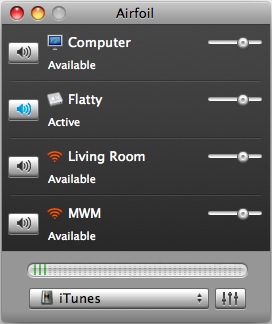
Rogue Amoeba offer a very good tool called Airfoil, which allows you to broadcast all of your audio, iTunes and any other program, to your Airport Express (and now Apple TV!) – see the screen shot below!

But it doesn’t stop there. Airfoil also allows you to:
  • control the volume on the target stereo hooked up through airtunes (not possible with iTunes on its own)
  • output to multiple speakers throughout the house (iTunes has this ability too but Airfoil extends it to all applications)
  • play video and have synced audio using Airfoil’s Video Player
  • turn any computer into a speaker (basically you can play your music through any computer in the house, very cool)
  • use it on Mac OR Windows!

The one downside that I see to the beauty that is this app is that its not free, but $25 (there is a demo version on their site that you can try, fully featured). Still, for all of the added features that this application provides, its still quite worth money. If you have an Airport Express or Apple TV and aren’t using Airtunes, I highly suggest you check it out. But once you do, be sure and pick up Airfoil.

Hide Your Dock Icons

February 14th, 2008

dockless.png

Do you have applications running in your dock that you want to hide? I have run into this problem several times, more recently with programs like Last.fm’s Scrobbler and Rogue Amoeba’s Airfoil (more on that in a post here!).

In my search for the ability to hide an app’s dock icon, I ran across a little application called Dockless, which removes the application’s dock icon even when its running. The program is amazingly simple: it surveys all of the applications on your Mac and then gives you the option of having a dock icon for it while its running or not. You can just as easily restore the dock icon for an application as you hid it.

There is one downside to this approach (which as far as I know is the only approach to this problem). When you hide the dock icon for an application, you will no longer be able to control it if you close its window. Since you’d use Dockless on the kind of applications you want to hide tend to be those that should run in the background without much intervention anyway, this isn’t much as problem.

However, I have found that that problem is easily remedied by two different solutions

  1. You can bring up the program’s main window by relaunching the program (a quick keystroke in Quicksilver or from Finder), which will bring up the program’s window again.
  2. You can get to the program’s preferences by remembering the keyboard shortcut for preferences on a Mac (typically ? + ,)
  3. Worse comes to worst, you can always rerun Dockless and re-enable the app’s dock icon. Configure what you need, and then hide the icon again with Dockless.

So there you have it – a simple app that provides a simple solution for an annoying problem – be sure and check out Dockless!

SuperDuper Tuesday & Time Machine, Revisited

February 5th, 2008

timemachinevssuperduper2.png

So after nearly three months, my favorite backup software, SuperDuper! has been updated for OSX 10.5 Leopard. The update is doubly free:

First, for those of us that already own SuperDuper (highly recommended), the update makes your installation Leopard compatible for the lovely price of $0.

Second, for those of you that haven’t yet bought SuperDuper, you can use the program for as long as you like for the staggering price of $0. However, if you end up purchasing the amazing application that has saved me on more than one occasion, you also get the SmartUpdate (very quick updates) and Scheduling (very automatic updates) features of SuperDuper enabled for a low $27.95. That’s money well spent.

Now that you know its available, go download the free trial! In the mean time, I want to revisit the Time Machine vs. SuperDuper debate that I brought up in my previous post.

To be honest, for the last three months, I have been using Apple’s much touted Time Machine. However, when I say I’ve been using it, I mean that it has been backing up my computer in the background for the last 3 months. Sure, this provided me with my much needed (and much recommended) comfort of knowing that my data is secure. However, I cannot honestly say that I have ever used Time Machine to find a file from the past and bring it back to the present.

While I will be the first to agree that maybe Time Machine is one of those things you don’t know you need, before you need it. Sure, that’s quite a possibility, and its definitely the reason I’m going to give Time Machine some more, well, time. However, when I look back on the last three months, I see that the only time that I ever opened Time Machine was either to 1) tell Time Machine to stop making backups of my Parallels Drive or 2) to show it off to my friends.

The first reason was simply because Time Machine backs up my 10GB Parallels drive image each time I run Parallels, which ends up taking a whole lot of room. So I deleted the previous copies several times before realizing that I could just tell Time Machine to ignore that folder (under System Preferences –> Time Machine –> Options). The second is self explanatory, and quite fun, but not necessarily useful. But in the end, that’s all I’ve used it for.

Therefore, if this trend continues, Time Machine is not by any means more useful than SuperDuper. In fact, a complete system restore (knocks on wood) would take longer using Time Machine as opposed to SuperDuper, as we saw in my previous post.

So that’s my 3 month report with Time Machine. I’ll report back in another 3 months with Time Machine, SuperDuper!, and Time Capsule. Should be interesting. For now though, SuperDuper wins in my eyes.

my writing

my website is a collection of my work and writing since 2004, so please don't be surprised if things seem a little outdated, particularly in the technology section. That said, the concepts behind most posts should be interesting given all that's happened since they were written so enjoy!