The Future Is Now, and It’s Amazing

December 31st, 2006

Parallels Desktop

Well, the future at least in terms of computers. More specifically, the future in terms of how Apple can live to compete, without compromising quality. Okay, enough generalities.

I’m talking about Parallels Desktop for Mac. I’ve written about it before, but a lot has changed since I wrote about it last. The Parallels development team have been working overtime on creating a product that has truly surpassed people’s expectations for running Windows software on their (Intel) Macs. As I write today, the last day of 2006, the Mac world has come a very long way in just one year. With the replacement of the old PowerPC processors to new and speedy Intel ones, Apple opened the floodgates for lots of different ways to run Windows on a Mac. At the time of this writing, none of these ways comes close to Parallels Desktop for Mac. Let me explain why.

When it first came out, Parallels Desktop for Mac offered Mac users the ability to run Microsoft Windows at full speed inside of OSX, no reboot required. For those of us who are forced to use Windows because of the lack of OSX versions of the program we need (AutoCAD, for me), this was amazing. Since Parallels Desktop for Mac came out this April, new and improved versions have been release almost twice per month, each new version adding logical and much needed improvements over the last version. However, on December 1st, the Parallels team released a beta version of Desktop for Mac that added several showstopping new features:

  • Drag & Drop from OSX to Windows: Seamlessly drag and drop files and folders from Windows to Mac OS X and vice versa
  • Auto-Adjusting Screen Resolution: Auto-adjusts the screen resolution to the actual Main Window size
  • Boot Camp Partition Booting: Boot your 32-bit Windows XP residing on Boot Camp partition directly in Parallels Desktop for Mac
  • Parallels Transporter: Migrate your Windows PC, VMware or Virtual PC VMs to Parallels virtual machines

All of these features are extremely useful and helpful, but none compare to the additional feature that this beta version introduced: Coherence. Coherence allows you to run Windows invisibly on your Mac, no windows desktop in sight, letting you work from within OSX but with your Windows programs. Simply put, Coherence mode “shows Windows applications as if they were Mac ones. Try it and enjoy best of both worlds truly at the same time. No more switching between Windows to Mac OS.”

Now I run AutoCAD on top of OSX, and never have to see the Windows interface. In fact, I can even launch Windows program from my dock. On the left is a small video I made showing how Coherence works. Basically, Windows starts up, and then disappears. I launch Windows Explorer, Internet Explorer 7, Microsoft Word 2007, all as if they are running right in OSX. You can even see how iTunes interacts with the Windows programs. Its pretty amazing, check it to the left (sorry about the quality, it was my first movie:) )

One of the best parts of Coherence mode is the fact that I can run Microsoft Office 2007 in OSX now. Why would I want to do that if I have Office 2004 for Mac already installed? Office 2004 for Mac runs incredibly slowly on Intel Macs since its not a Universal Binary, and therefore has to be run in Rosetta. On the other hand, since Windows runs at full speed in Parallels, Office 2007 is as quick and speedy as it ever has been. As a result, I almost exclusively now run Microsoft Office products in Parallels rather than OSX. Its quick, easy, and the perfect solution until Microsoft releases a new version of Office 2007 for Mac.

Check out Parallels, check out Coherence, and if you have any questions about why either one is EXTREMELY useful, let me know :)

Behind the Curtain

December 30th, 2006

ProcessScanner
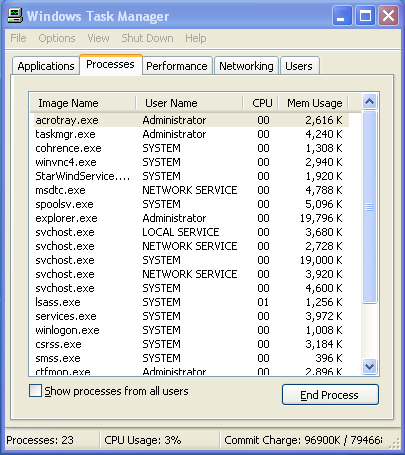
Processes

Have you ever pressed Control+Alt+Del on your PC, clicked on the Process tab, and wondered what all of those processes running in the background are? Me too. I used to first see if I could recognize the name, then maybe try to google the name, and then, well, just shut the process down and see what happens. Well, those days are over.

In a world of (pc) spyware, viruses, trojans, etc, it is important to both know, and keep track of what our computers are doing. Therefore, in order to help my favorite trifecta of Windows Defender, Spybot Search and Destroy, and AVG Antivirus, I present to you Process Scanner.

Process Scanner is an offshoot of a site called Process Library, which is exactly what it sounds like: a library of processes that run in Windows. Process Scanner is a small program that examines the processes runnning on your computer, and then sends the results to a website (anonymously for those of you in tin hats), which creates a report of what exactly each one of them is, as well as the threat level each process brings to you and your machine.

Its simple, effective, and very helpful, so check Process Scanner out.

Apple Cares: Should I Buy AppleCare/.Mac or Not

December 29th, 2006

First of all, I would like to apologize about the lack of posts. Despite the fact that I am on winter break currently, I have been working with my father, so my time has been quite sparse. That said, below is a post that was originally supposed to be two different posts, but since the topics are so related, I combined them. Here goes!

applerepair.png

I’ve said (and typed) it before and I’ll say (and type) it again – I love Apple. There are lots of reasons why, but this week I found yet another one. Last Tuesday, in the late afternoon, I sent my MacBookPro to Apple for repair of the CPU hiss (now acknowledged by Apple). The computer worked just fine, but since I have high standards for my machines (pronounced a-n-a-l), I sent it in. The computer is less than a year old, and is therefore covered by the one year manufacturer’s warranty (see below).

repairstatus.png

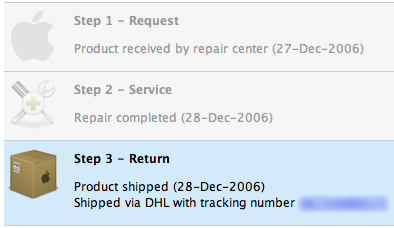
The computer arrived in Texas the next day (I could track repair progress online), repaired, and shipped back to me. I received it Thursday morning, a full one and a half days after I had sent it (amazing). What’s more, when I opened the box, I received a pleasant surprise.

Before I sent my MBP to Apple, there was only one cosmetic problem with my MacBookPro – I accidentally rubbed off part of the metallic coating on the strip below my keyboard. I don’t know how it came off, but the discoloration really annoyed me. However, since this distortion was of my own doing and therefore not covered by the one year warranty, I could not ask Apple to fix it. However, when I opened that box that day, not only had they fixed my CPU (new logic board), but they had also replaced the distorted part below the keyboard. They also managed to replace my worn trackpad, spacebar, and top outer case). It was unexpected, un-asked for, and completely generous. Now my computer is like new, no hiss, AND no distortions.

Now that I’m done praising Apple with anecdotal evidence, I want to offer some suggestions about purchasing a new Mac. When you are lucky enough to be in the Apple Store purchasing a brand new Mac, you will probably be asked any number of questions by the sales representative – however, you can definitely count on being asked the following two questions:

  1. Are you interested in purchasing AppleCare for your new Mac in order to protect your purchase with an extended warranty??
  2. Are you interested in purchasing Dot Mac for your new Mac in order to enhance its capabilities and give you a variety of helpful online tools??

Let me first address these questions together: You won’t need either immediately, if at all. Now let me address them separately:

applecare.png

AppleCare is an extended warranty. While extended warranties are helpful in some (rare) situations, the vast majority of them are a large waste of money. However, since early adopter warnings do not seem to work for some people (like me), one would still argue that its always good to be protected. Although that’s true, what the Apple sales team rarely mentions is that for the first 90 days, you get complimentary technical support from Apple. Also, and more importantly, for the first year from your purchase date, you get free hardware repairs. I have taken full-fledged advantage of Apple’s free year of repairs, and have sent in my Mac several times already to fix little issues here and there (see above).

What is even more interesting is that Apple states that their AppleCare Plan extends your support to THREE years from the original purchase date. However, you get the first year free anyway, so in reality, when you buy AppleCare, you are purchasing two years of extended warranty, not three. Basically, I would recommend that any decisions about AppleCare for a new Mac be made a little less than a year after purchase, since you will not be purchasing anything you’re not getting with your new Mac anyway.

dotmac.png

The same can be said about Dot Mac (.Mac). The Apple sales team does a very good job selling people .Mac with their new computer, but in reality, there is no need rush to purchase .Mac. Some would argue that .Mac is a complete waste of money that should come with every new Mac anyway, and although I would agree completely, I still would like to offer this bit of advice for those interested in .Mac: you don’t, by any means, have to purchase it at the time of new Mac purchase. In fact, the second you start up your new Mac, you will be asked if you would like a free 60 day trial of .Mac, whether you purchased it for a year or not. You can also activate your free trial any time after that too! Basically, I recommend that any decisions about purchasing .Mac be made only after you have tried the service for free for 60 days. Even then, if you’re considering purchasing .Mac, check out some alternatives before buying anything.

Happy Purchasing, and Holidays :)

TV Shows OnDemandLine

December 18th, 2006

dailymotion.png

Today’s interesting find is called Daily Motion, which I found through a link at one of my favorite sites, DunderBall. The site is similar to YouTube in both intention and function, but lacks the sheer amount of users and videos. Although I love YouTube, Daily Motion offers something that YouTube doesn’t, and chances are, never will – Full TV Show Episodes.

While I’m pretty sure of the illegality of putting up entire episodes of TV shows online, I plan on enjoying this site as much as possible while it lasts.

The site is quite speedy and offers a full screen (window) mode that lets you watch full episodes of almost any TV show (and almost every episode of popular shows). I wanted to see what the show Sleeper Cell was all about, and have spent the last two hours watching the first two episodes (granted, with subtitles in French, but who cares!).

Its really easy to use so check out Daily Motion if you want to know what a show is all about. I’m going back to watching Sleeper Cell. Enjoy!

Green is the New Dirty

December 15th, 2006

begreennow.png

I’ll be honest, I’m not the biggest environmentalist. I rarely recycle regularly, I drive an SUV, I’m just not “green.” However, I think I might be well on my way, since this semester I worked on a project which improved the accuracy of the Consumer Footprint Calculator, originally created by Christopher Jones.

The calculator lets you input various parts of your lifestyle (vehicle you drive, housing type, etc), and see what kind of green house gas emissions you’re creating with your lifestyle, and how you compare to the US and World Averages. My group’s improvements have not yet been implemented, so I actually wanted to share another interesting find with you along these same lines.

The find is called BeGreenNow, and it is a very well designed, similarly themed website devoted to helping people realize the impact they have on the environment. The site even helps you offset your emissions by purchasing Carbon Offsets. There is also a social networking aspect to the site, so if your friends also have accounts, you can see how your lifestyle compares to theirs. Its all very well done and very easy to use. Check it out here!

Claim Your Space

December 11th, 2006

msofficelivebasics.png

Everyone should have a domain name. I’m a huge advocate of having domain names for families (such as gordin.net), as well as for individuals (such as eugenegordin.com, which you’re currently enjoying reading). Therefore, for all of you Windows users, Microsoft is offering free domain names for you, providing at no cost:

  • Free domain name and web hosting
  • Web site design tools
  • 500MB of web storage
  • 25 email accounts
  • Web site reports
  • Search engine advertising tool

This is quite a great deal (things are just better when they are free), so I highly recommend the windows (and Parallels) users check it out here. Also, according to the good people over at DownloadSquad, if you decide to cancel your hosting with Microsoft, you still get to keep the domain.

For all of you non-Windows users, NameCheap is where I get the majority of my domain names for my webhosting company ($9 per year). That said, if you are looking for non-Microsoft hosting, I know a guy who can help you out :) . Enjoy.

Send and Share

December 11th, 2006

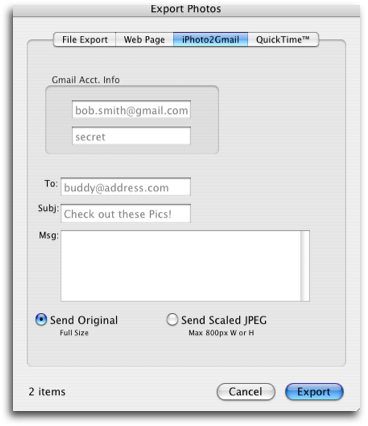
iphoto2gmail.png

I’m a big fan of Gmail. I’m a big fan of iPhoto. However, if I want to email my pictures from iPhoto with Gmail, I have to drag them from iPhoto to my desktop and then go to Gmail and browse for the file and then send it.

All of that isn’t necessary anymore with the help of a little plugin called iPhoto2Gmail, which allows you to, well, send pictures from iPhoto to Gmail believe it or not. It works through iPhoto’s File–>Export function and lets you login to your Gmail account and attach the selected photos to an email you can write in that same window (see screenshot).

If you use iPhoto and Gmail, I highly recommend this plugin. Its donationware, so if you like the work, be sure and donate (there’s a Paypal link on the site)!

Save Your Screen, From Nothing

December 1st, 2006

fenetres-volantes.jpg

Today’s useless but interesting nonetheless find is a screen saver called Fenêtres Volantes that makes your windows fly. I could go into greater detail, but that pretty much sums it up. Its a cool little animation, so check it out here.

Oh, and why from nothing you ask? Unless you are using an old type of monitor, the screen saver is nothing more than a pretty picture.

A Closer Look at Windows

December 1st, 2006

windows-xp-logo-glass-small.jpg

To go along with the new sidebar section I added today that lets you see all of the posts associated with your operating system (if that’s what you are looking for), I thought I would have a post dedicated to the Windows users. With that said, here goes:

Have you ever wanted to know how to turn off those pesky start-up programs that seem to just pop up when you start your computer. If so, there are two places that you can find (and disable them). The first place is in the start menu: Start –> All Programs –> Startup. While this is the logical place for your startup items, it by far isn’t where the majority of them are.

You can find more startup items by going to Start –> Run and typing “msconfig” without the quotes. This will bring up a window with a few tabs. If you click the Startup tabs, you will see the programs that are set to run when your computer starts. Be extremely careful when unchecking items in this tab – you could mess up your computer. Therefore, a good rule of thumb is to not uncheck any program that you do not recognize.

That little trick has helped me get rid of spyware and program annoyances in the past, so I hope it helps you too. You can find more windows commands here.

PS: My goal is to post both Vista and Office 2007 reviews sometime this year for you windows users, so be on the look out for those!